How to Create Interactive Meetings with R-Link
Tired of meetings that feel like a one-way street? Buckle up, R-Link aficionados! We’re about to turbocharge your virtual gatherings with clickable on-screen buttons.
In R-Link Studio, buttons live inside elements like the CTA Banner, and your room can carry its own Custom Button too. Together they're your ticket to transforming mundane meetings into interactive spectacles that would make even the most jaded attendee sit up and take notice.
Understanding R-Link's Interactive Features
R-Link offers a suite of tools designed to boost engagement and collaboration. At the heart of these features are buttons your audience can click: a call-to-action button inside a CTA Banner, and a Custom Button that sits in the room's top bar.
What Are On-Screen Buttons?
On-screen buttons are customizable links that you add to your meeting interface. They can point attendees to a registration page, a resource, an offer or any page you choose, making your meetings more dynamic and participatory. (If you used the older Button Bar Widget, this is where that idea lives now.)
Step-by-Step Guide to Setting Up Interactive Elements
Let's dive into how you can set up and use on-screen buttons to create truly interactive meetings.
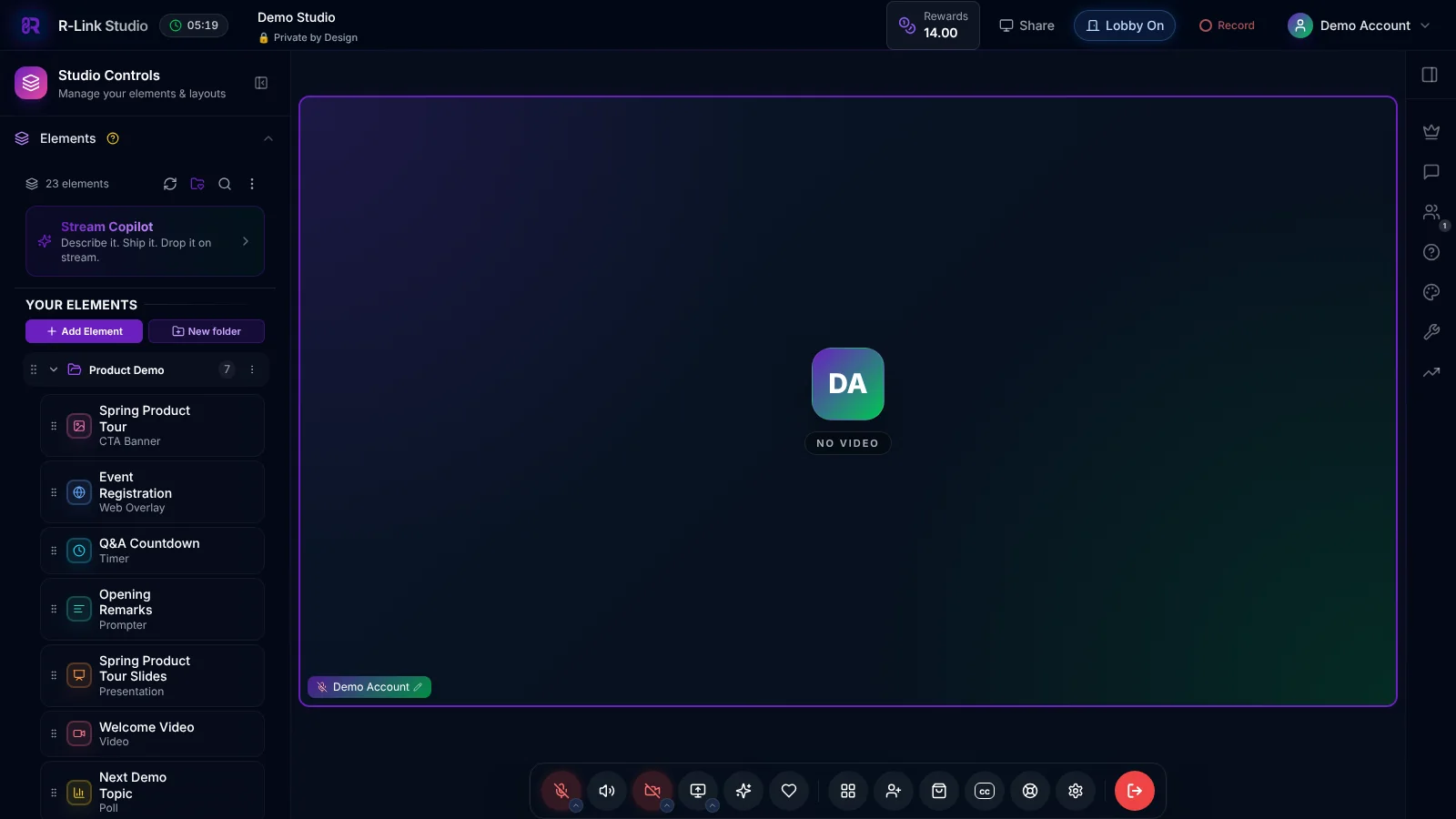
1. Open the Elements Panel
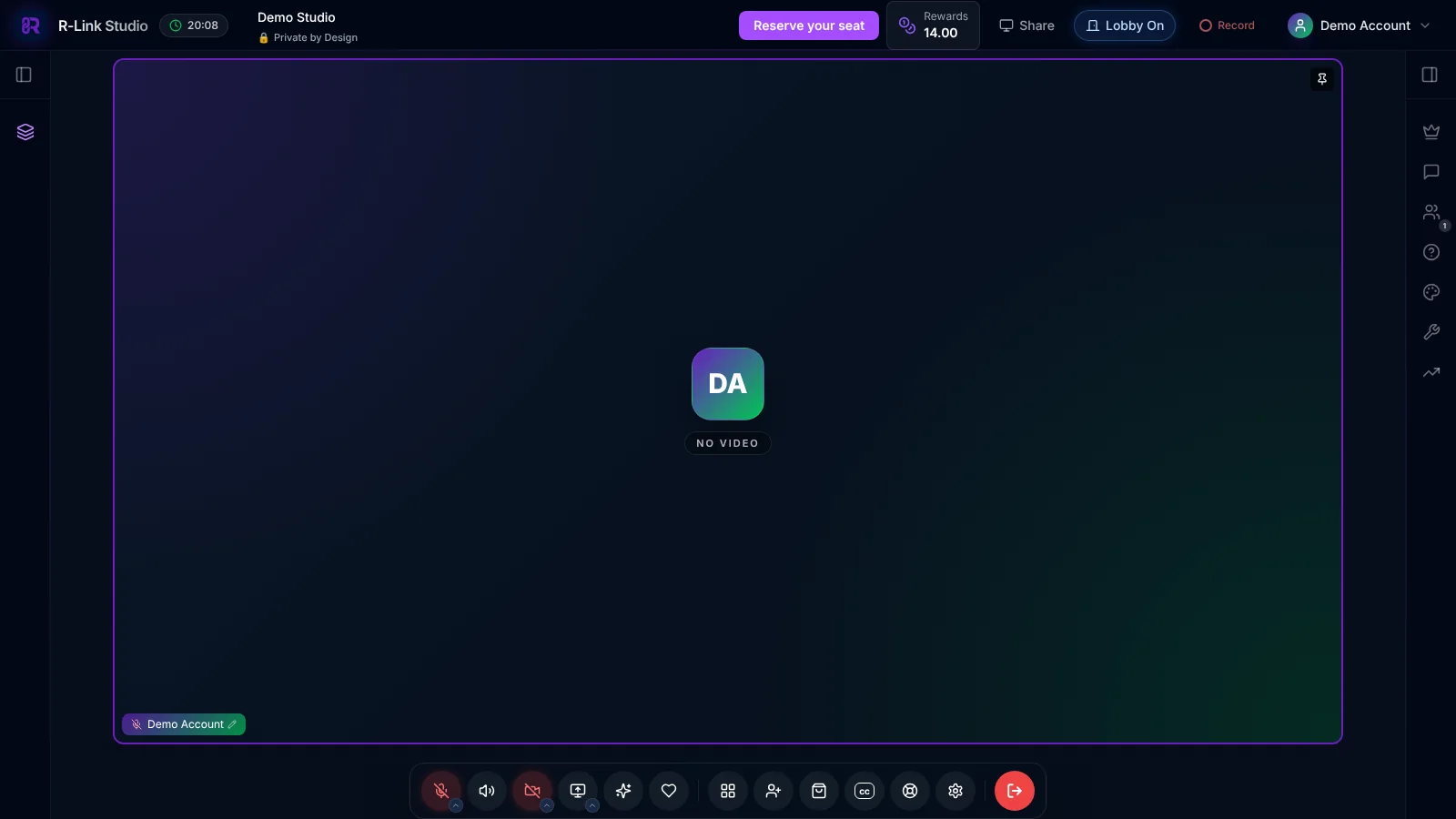
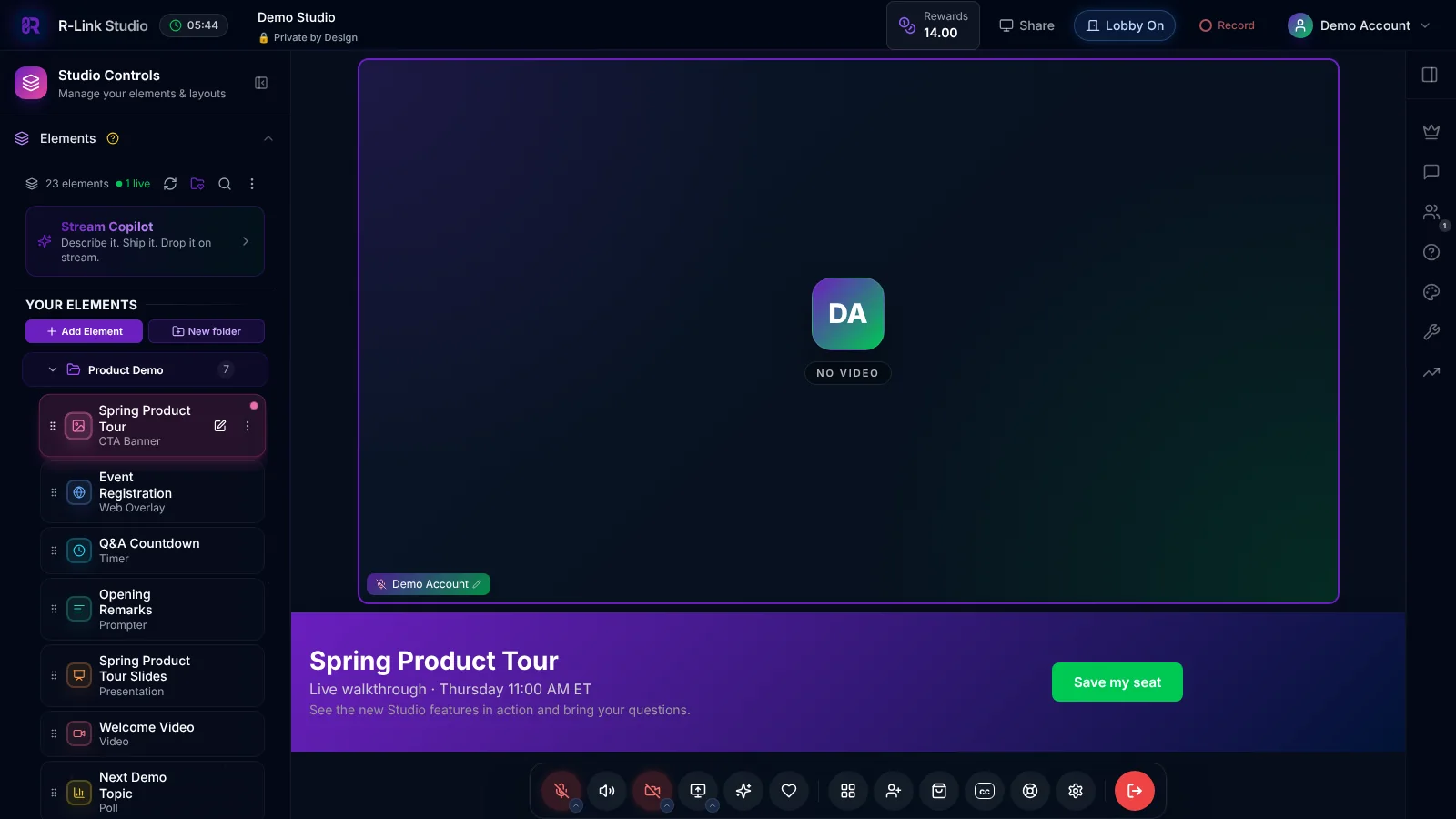
In your R-Link Studio room, click the Elements icon on the left to open Studio Controls. This unlocks a treasure trove of engagement tools at your fingertips. You can build the same elements ahead of time under Studio Assets in your dashboard.
2. Create a Folder
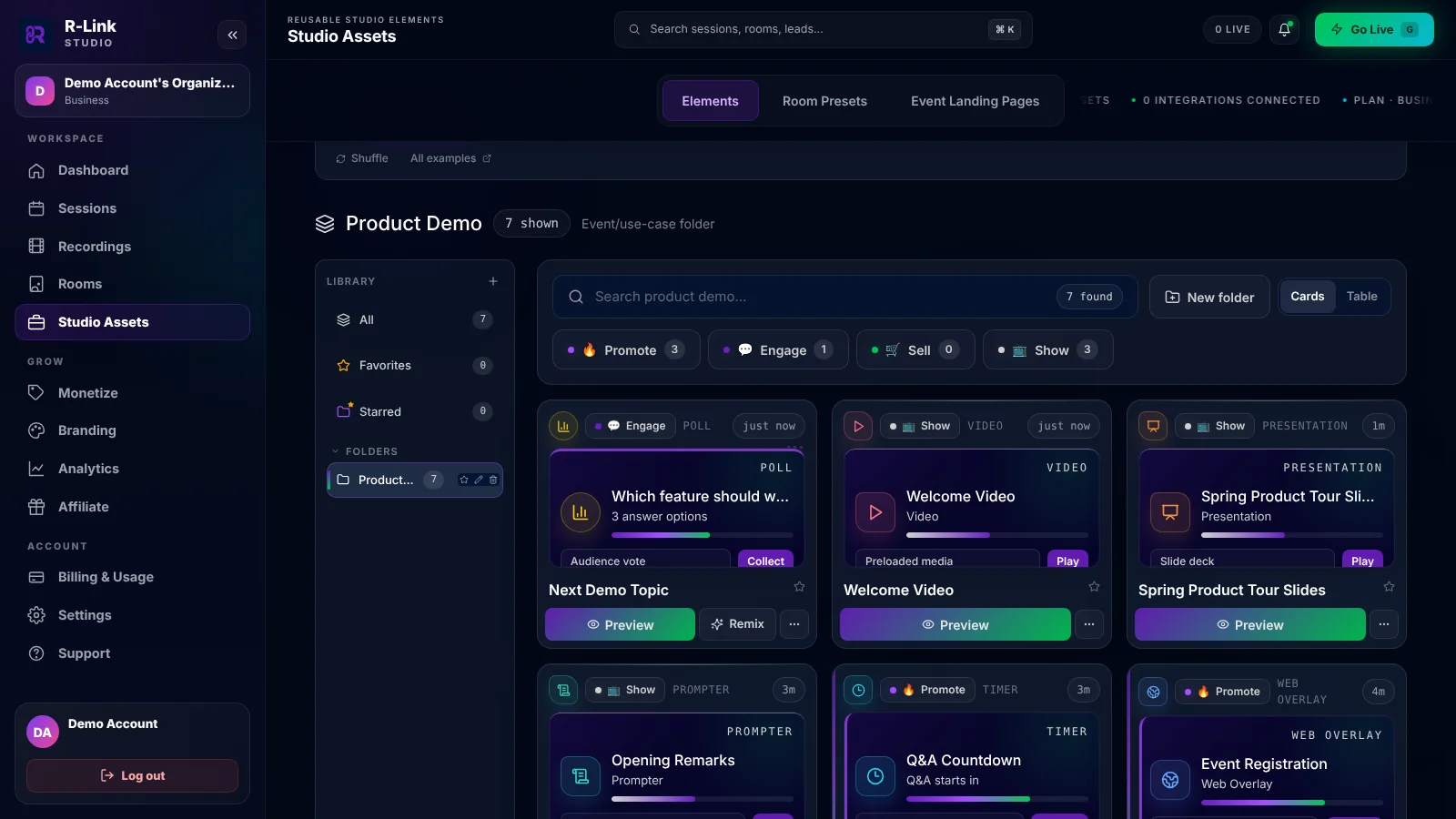
Click "New folder" and christen it with a name that pops. Keep it snappy. We're aiming for "catchy conference catalyst," not "War and Peace: The Meeting Edition."
3. Add a CTA Banner
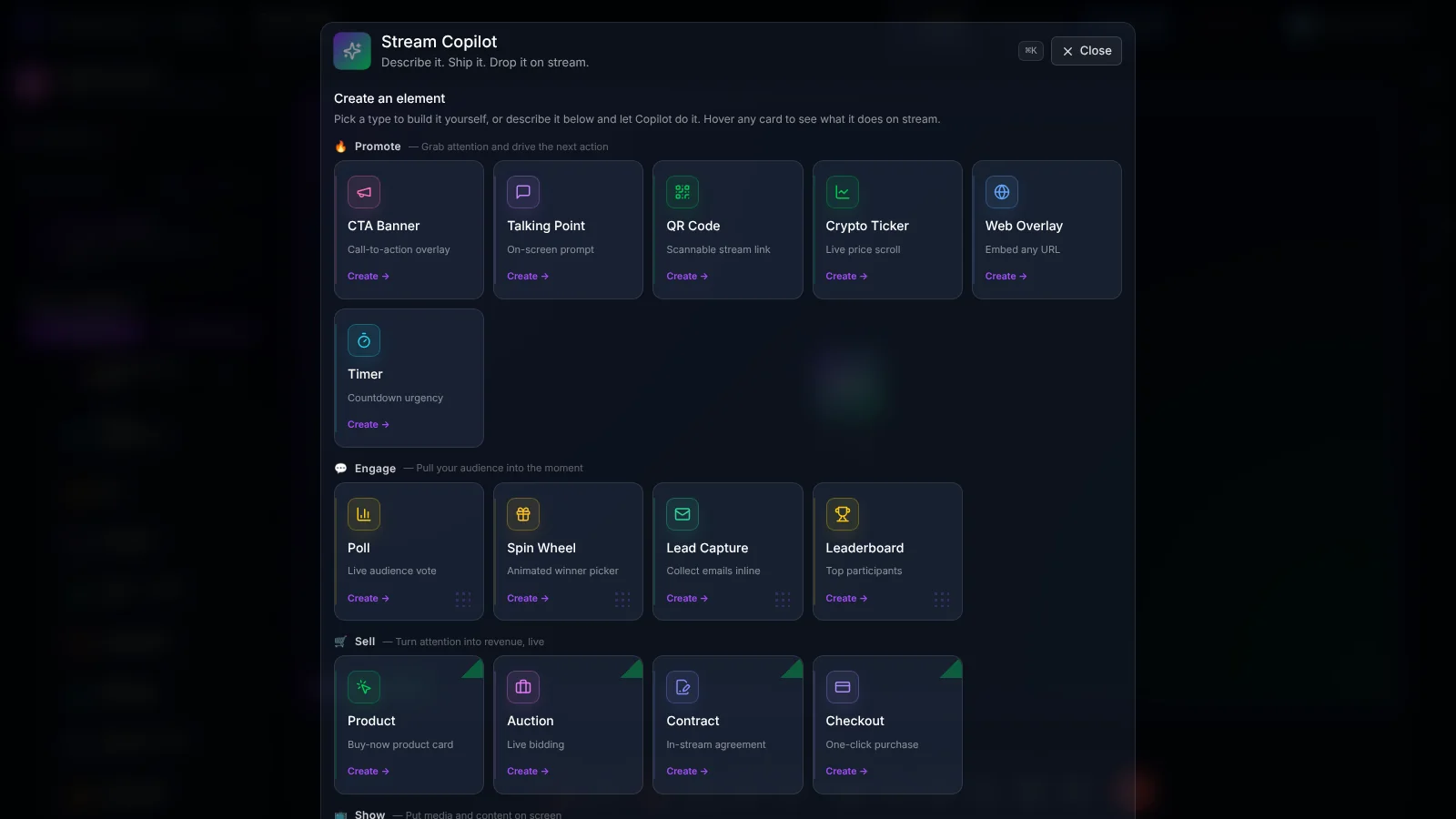
Now for the main event. Click "Add Element" and choose "CTA Banner" under Promote. Congratulations! You've just armed yourself with the secret weapon of meeting engagement.
4. Customize Your Banner and Buttons
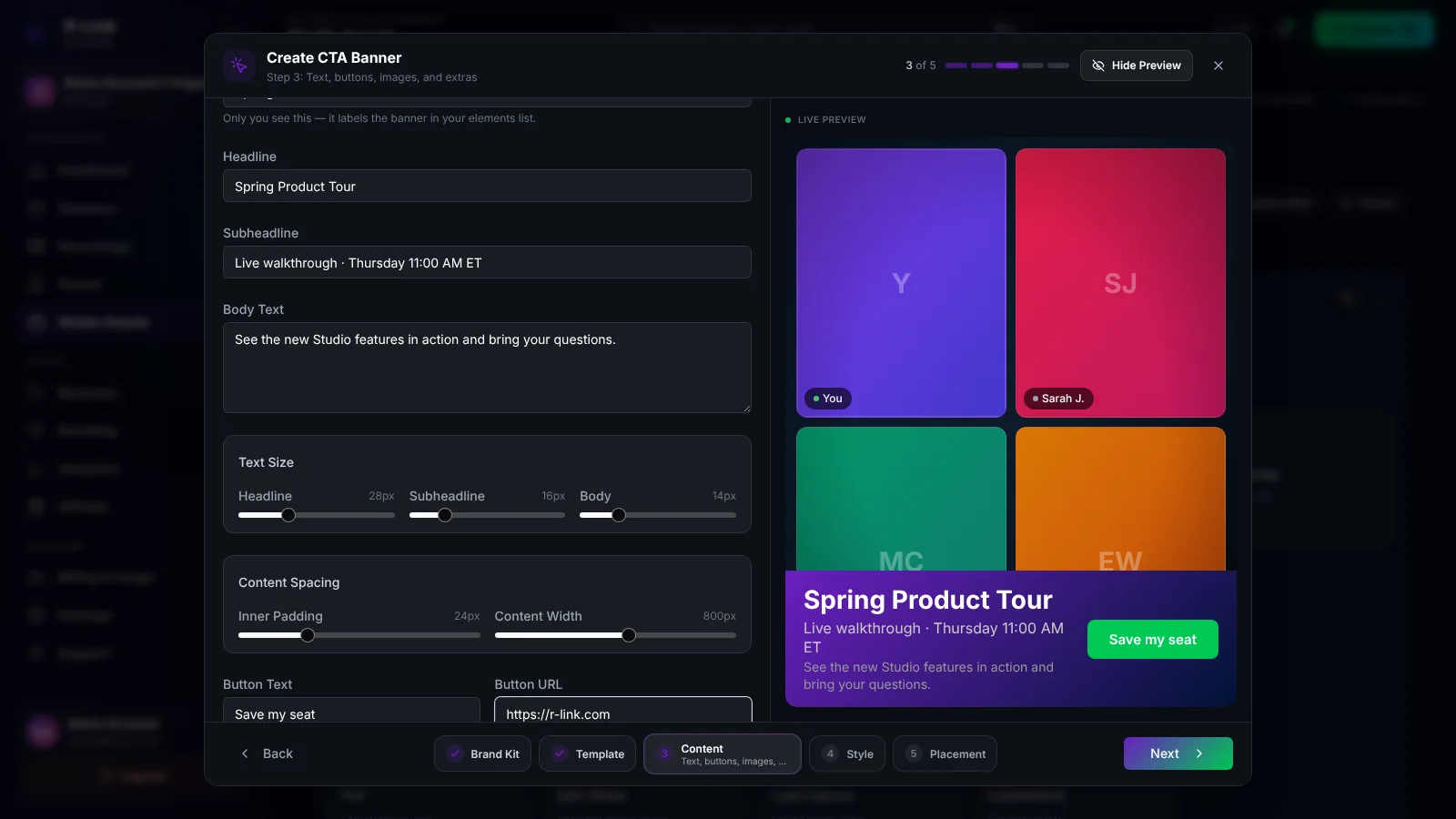
- Name Game: Give your banner a headline that sizzles. "Boring Buttons" is about as appealing as day-old coffee.
- Position Perfection: In the Placement step, choose a top or bottom banner. It's like deciding between a halo or a mustache for your meeting screen - both fabulous, but with different vibes.
- Color Coordination: Pick a brand kit or style that complements your meeting theme. We're going for "stylish synergy," not "my eyes are bleeding."
5. Design Your Buttons
- Craft button text that is snappy and irresistibly clickable. Make your buttons more tempting than a "Skip Ad" option.
- Set the target website for each button. Where will your digital portals lead? The possibilities are as endless as a blockchain!
- Turn on a secondary button when you want to offer a second path, like "Book a demo" next to "Save my seat."
- Need a button that stays visible all event long? In Rooms, edit your room and turn on Custom Button under Business Plan Settings to add a branded button to the room's top bar.
6. Save and Fine Tune
Hit "Create" to save your banner. Voila! Click it in the Elements panel to put it on screen, and click again to hide it. You can edit, show or hide it on the fly during your meeting.
Best Practices for Engaging Virtual Meetings
Now that you've set up your on-screen buttons, here are some tips to maximize their impact:
- Use buttons strategically: Link to relevant resources, launch quick polls, or provide easy access to important documents.
- Keep it simple: Don't overwhelm participants with too many options. Focus on 3-5 key interactive elements per meeting.
- Encourage participation: Use your buttons to prompt attendees to ask questions, vote on topics, or access collaborative tools.
- Be responsive: Monitor button interactions and be ready to address any questions or issues that arise from their use.
Measuring the Success of Your Interactive Meetings
To ensure your interactive meetings are hitting the mark, pay attention to these metrics:
- Participation rates: Track how many attendees are using your interactive features.
- Engagement duration: Monitor how long participants stay active during the meeting.
- Feedback scores: Collect and analyze participant feedback on the interactive elements.
- Follow-up actions: Measure the completion rate of any post-meeting tasks or resources accessed via your buttons.
Wrapping Up: Elevate Your R-Link Meetings
By leveraging R-Link's on-screen buttons and following these best practices, you're well on your way to creating meetings that are not just attended, but truly experienced. Interactive elements transform your virtual gatherings from one-way presentations into dynamic, collaborative sessions that drive engagement and productivity.
Remember, the key to successful interactive meetings is continuous improvement. Experiment with different button configurations, gather feedback, and refine your approach over time.
Ready to revolutionize your virtual meetings? Log in to R-Link today and start creating truly interactive online experiences that will leave your participants asking for more!

We build R-Link Studio, the video platform for meetings, webinars and live streams that sell. Questions about this article? Talk to our team.