In today's digital landscape, choosing the right format for your virtual events is crucial. R-Link offers versatile options to seamlessly transition between interactive meetings and large-scale webinars. This guide will help you optimize your R-Link experience for various event types.
1. Interactive Meetings: Fostering Collaboration
For smaller, interactive meetings, you will likely want to give your guests more options to interact with each other and with their R-Link hosts. In your R-Link Studio dashboard, open Rooms, click Edit on your room, choose the Meeting room type, and set the following under Room Settings.
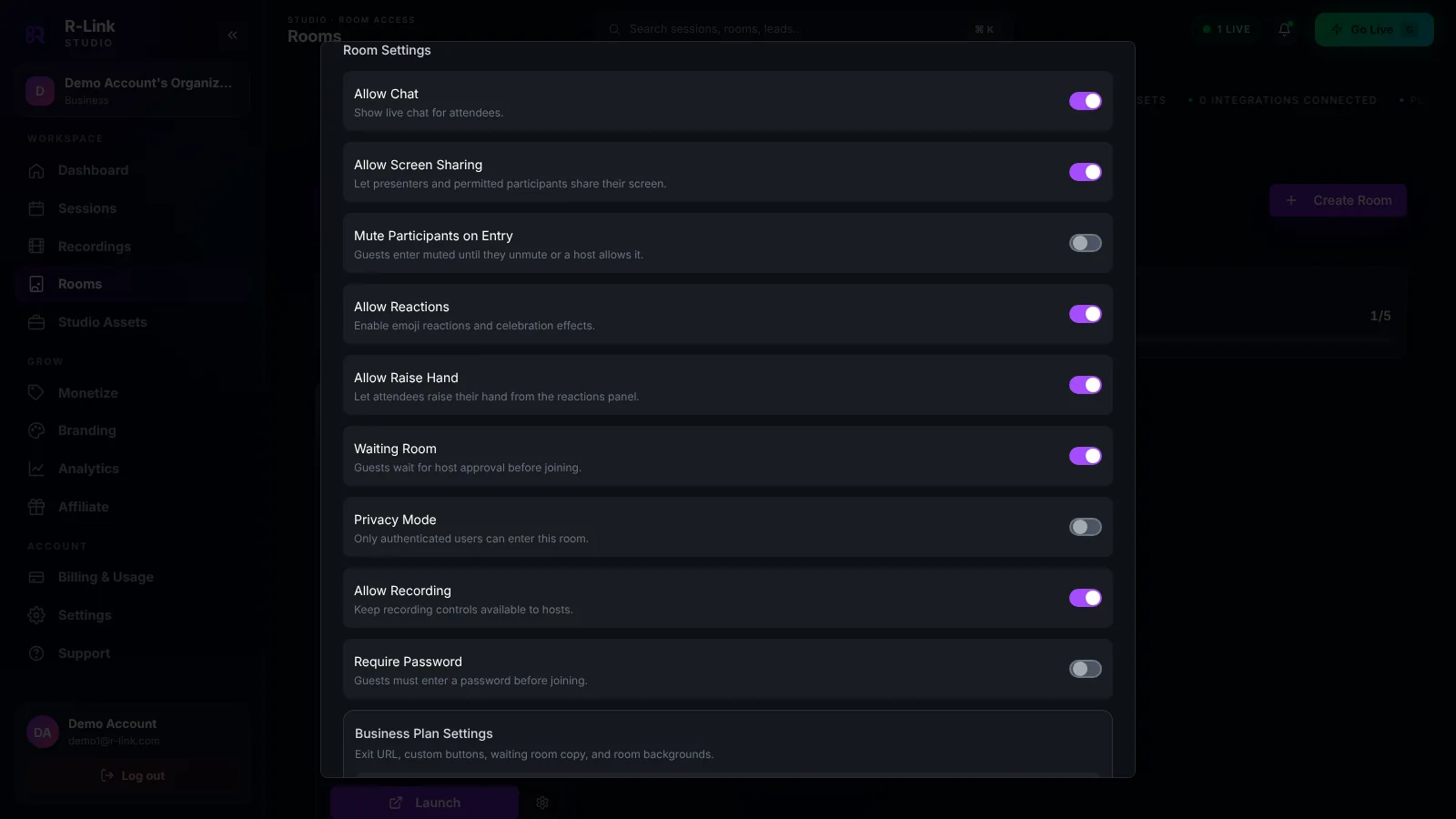
In this scenario, we have set the following R-Link room settings:
- Mute Participants on Entry (off): Allows direct verbal communication
- Allow Screen Sharing: Enables collaborative presentations
- Allow Raise Hand: Facilitates organized participation
- Allow Chat: Gives everyone a place to share links and questions
- Allow Reactions: Lets guests respond without interrupting
This set of features offers your guests multiple ways to communicate with their hosts. They can mute or unmute themselves, share their webcam, chat freely, share their screen, or even raise their hands to ask a question.
Additionally, chat features prominently in this type of meeting. Hosts can feature a chat message on screen so no one misses an important message.
2. Interactive Webinars: Balancing Engagement and Control
When hosting larger events with audience interaction, choose the Webinar room type and strike a balance between engagement and management:
- Mute Participants on Entry (on): Reduces background noise as people arrive
- Allow Screen Sharing (off): Keeps the stage for your presenters
- Waiting Room: Lets hosts admit guests when the event is ready
- Allow Chat and the Q&A panel: Collect questions without interruptions
- Allow Raise Hand: Allows for organized Q&A sessions
This configuration is perfect for town halls, educational seminars, or product launches where audience input is valuable but controlled.
3. Panel-Only Webinars: Focused Presentation Experience
For events centered on expert panels or keynote speeches, R-Link offers settings to minimize distractions:
- Mute Participants on Entry (on) with screen sharing and raise hand turned off: Keeps the focus on the panel
- Privacy Mode or Require Password: Controls who can enter
- Chat Restrictions: Turn off Allow Chat, or route questions through the Q&A panel
- Invite your panelists: Use the room's invite options to bring speakers in as co-hosts or panelists
This setup is ideal for high-profile speakers, industry conferences, or any event where the focus should be solely on the presenters.
Leveraging R-Link Widgets
Enhance your events further with R-Link Widgets. These customizable tools allow you to:
- Display branded content
- Share important links
- Conduct real-time polls
- And much more!
By tailoring your R-Link settings and utilizing widgets (now called elements in R-Link Studio), you can create virtual events that keep your audience engaged from start to finish.
Ready to elevate your virtual events? Explore R-Link's features today and transform your online gatherings into unforgettable experiences.
We build R-Link Studio, the video platform for meetings, webinars and live streams that sell. Questions about this article? Talk to our team.