Have you ever found yourself fumbling through a new platform, wishing for a magic wand to make it all click? Well, consider this your R-Link magic wand! Whether you're a tech wizard or just dipping your toes into the world of online collaboration, this guide will have you hosting like a pro in no time.
Welcome to Your Virtual Playground
Remember the excitement of exploring a new playground as a kid? That's exactly how you should feel about R-Link.
It's not just another boring meeting platform – it's a dynamic space where ideas come to life and collaboration knows no bounds.
Let's start with the basics. Imagine R-Link as your personal treehouse club.
How To Open Your R-Link Room
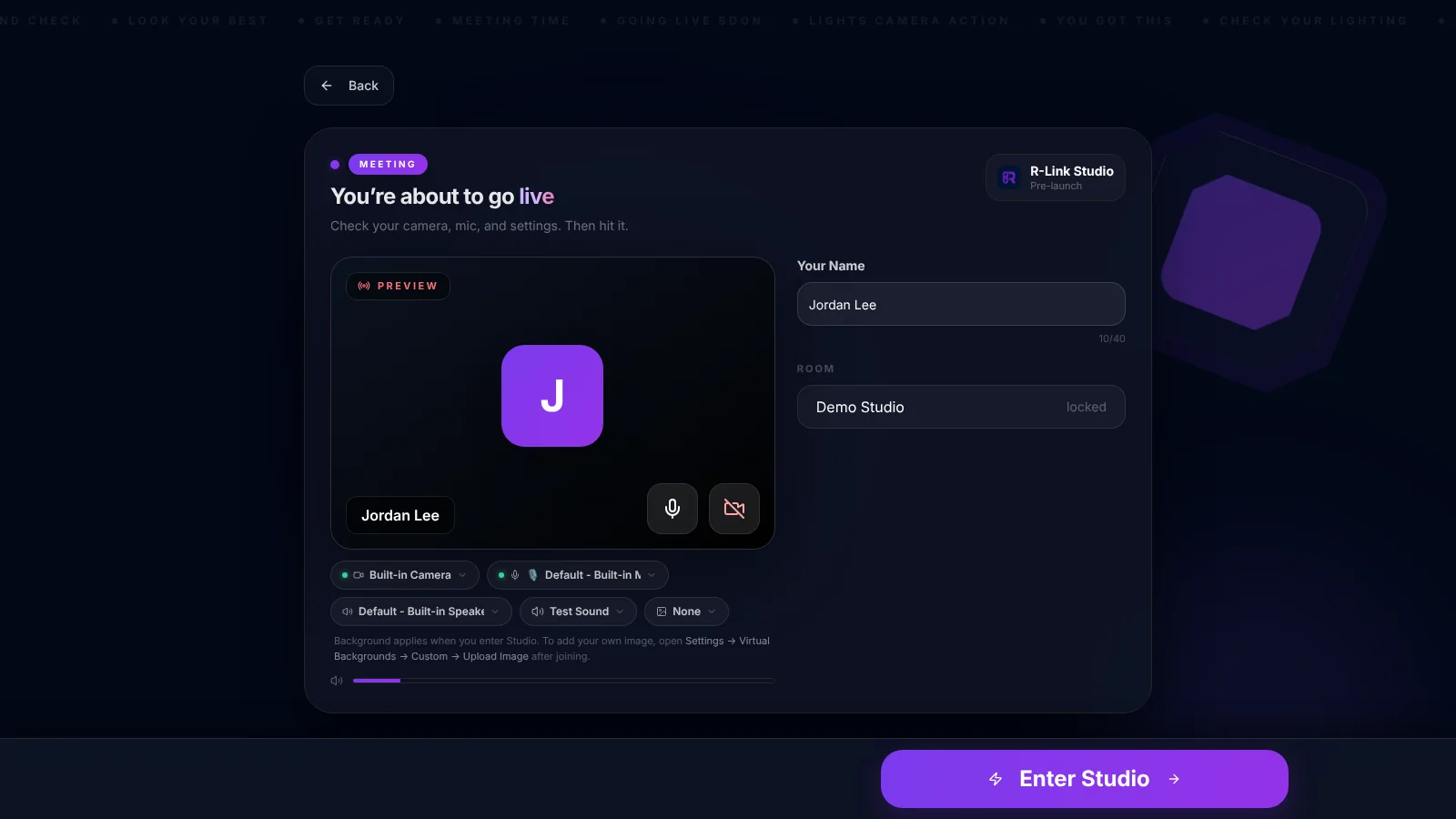
- First, to enter an R-Link room, open up your favorite browser on PC, Mac, or mobile and simply type studio.r-link.com/yourroomname into your browser. Voila! You're at the clubhouse door.
- If you're a guest, just knock (type in your name) and enter.
But if you're the cool kid who owns the treehouse (aka the host), sign in at studio.r-link.com and show your secret handshake (login). Then open Rooms and click Launch on your room.
- Before you join, you'll be asked to check your camera, microphone, and speakers. Don't skip this step; make sure that everything is working.
- When you're ready, turn your camera on or off and click Enter Studio. Don't worry, though; you can always turn your camera and mic on or off in the meeting room later.
- Now you're in your meeting room. Across the top, you'll see your room name, Share (for screen sharing), Lobby and Record. Your device and view controls run along the bottom, the Elements panel is on the left, and chat, attendees and more are on the right.
How To Invite People To Your Room
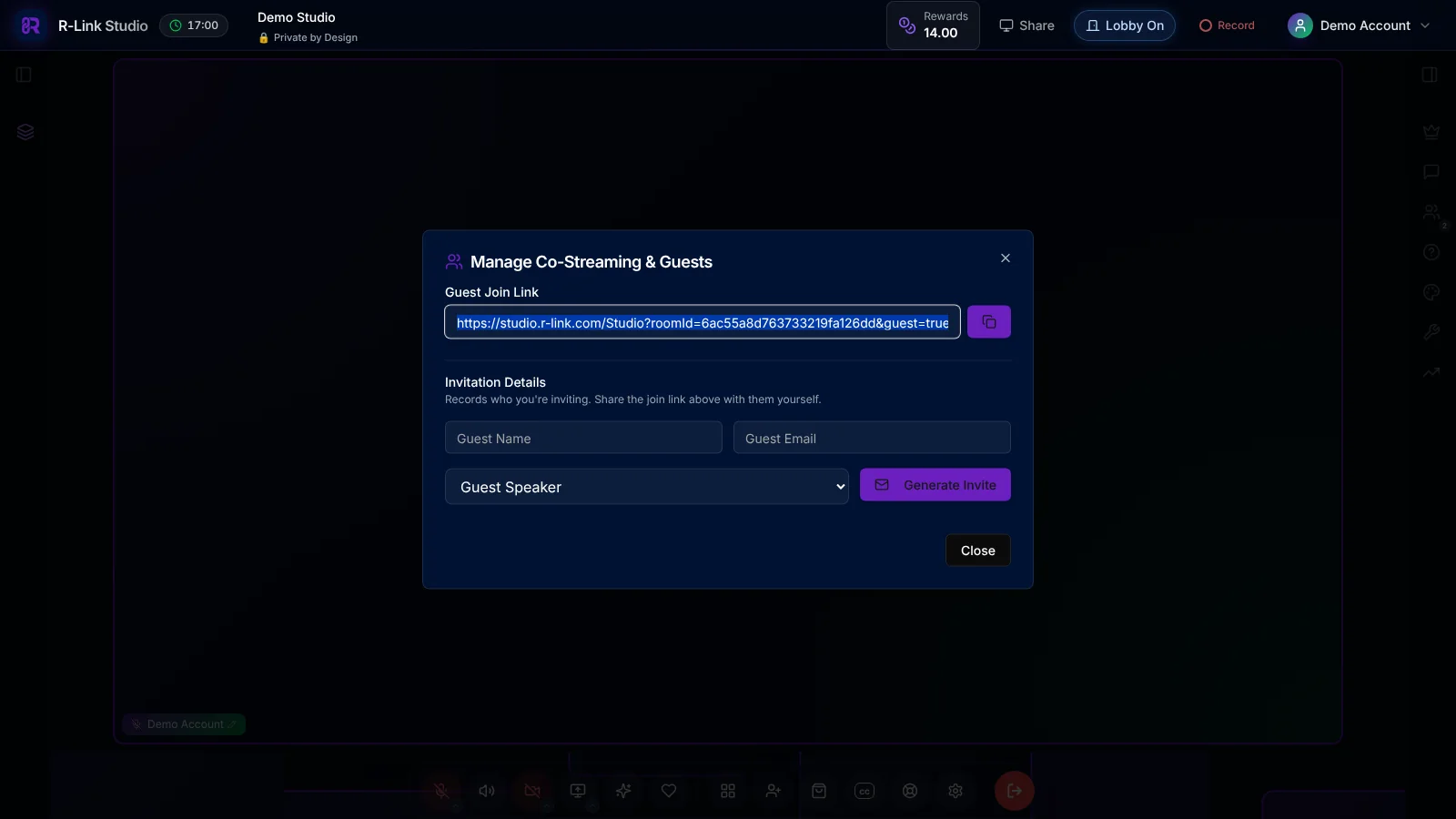
The first thing you might want to do is invite people to your room. The easiest way is, of course, sharing your R-Link web address or URL. You can copy your room link from Rooms in your dashboard, or grab the guest join link from the invite button in your room.
Room Settings
To bring in a co-host, guest speaker or panelist, click the invite button in the bottom toolbar. You'll get a guest join link and can record who you're inviting and their role. To change how your room works, open Rooms in your dashboard and click Edit on your room. Room settings include the room name and URL, a default brand kit, and security options like a waiting room and a password.
Webinar Settings
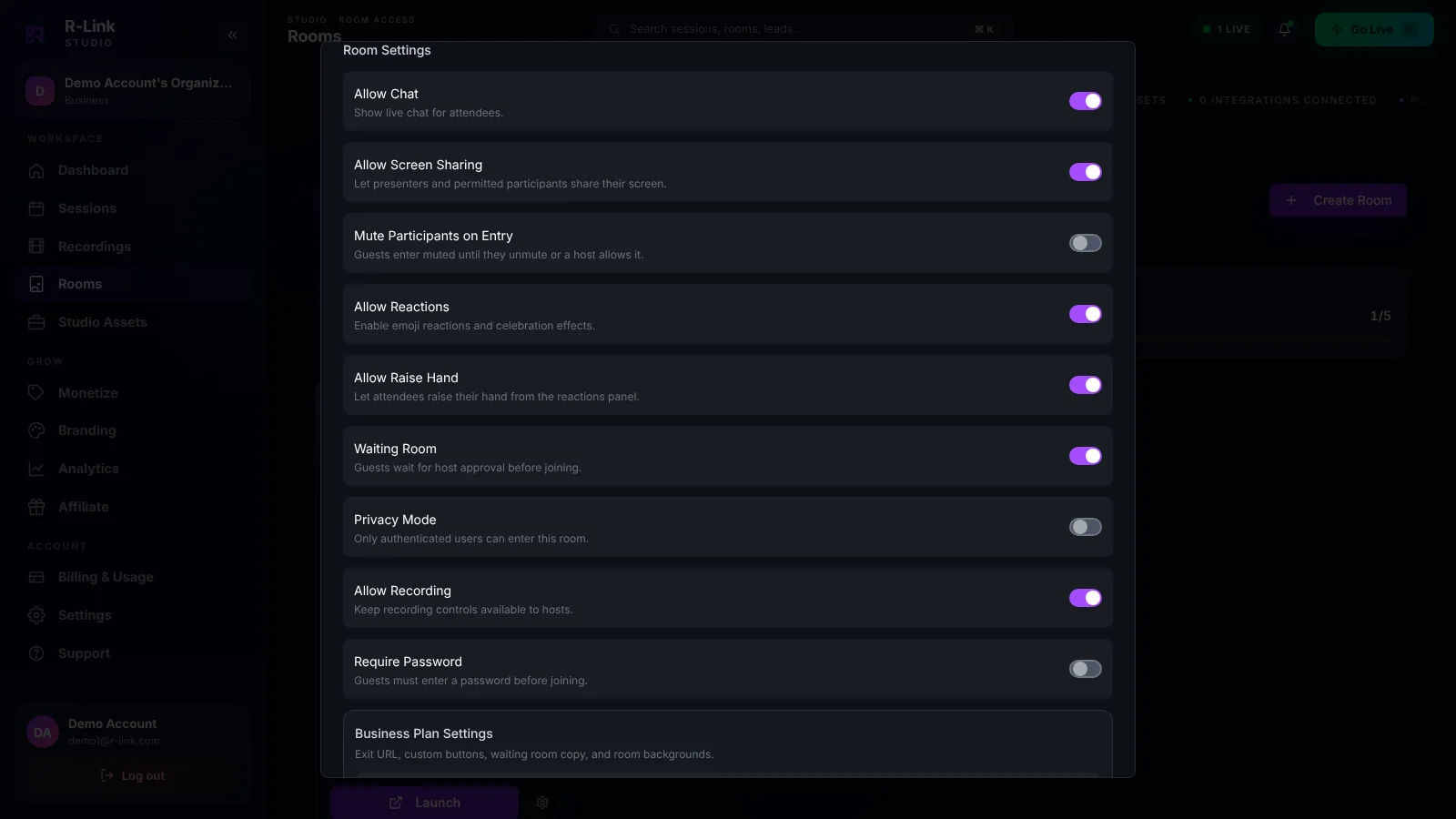
The same Room Settings give you greater control over attendees, with options to mute guests on entry, allow or disable screen sharing, allow raised hands, and more. Business plan rooms also get an exit URL, a custom button, waiting room text and a custom background.
Room Permissions
If you want to add members of your team as additional hosts or admins, you can do that under Settings > Team & Users. All you need is their email address, and you can update these permissions anytime as your organization grows.
Recording Your Meetings
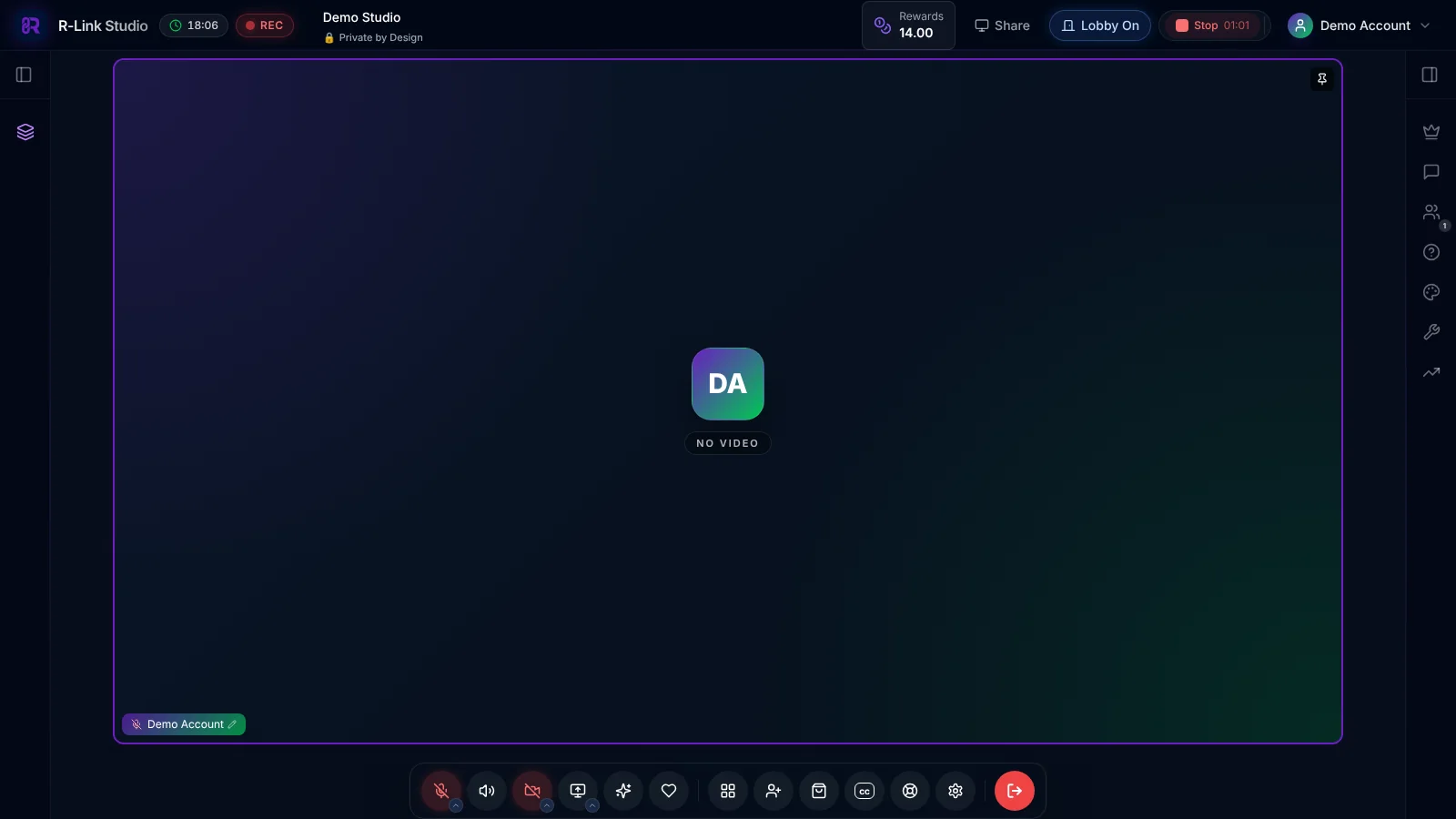
Now, let's talk about how to actually host a meeting. If you want to record your meeting, just click Record in the top bar. A REC badge shows while you're recording, and you can click Stop when you're done. Your recordings appear under Recordings in your dashboard.
Live Streaming
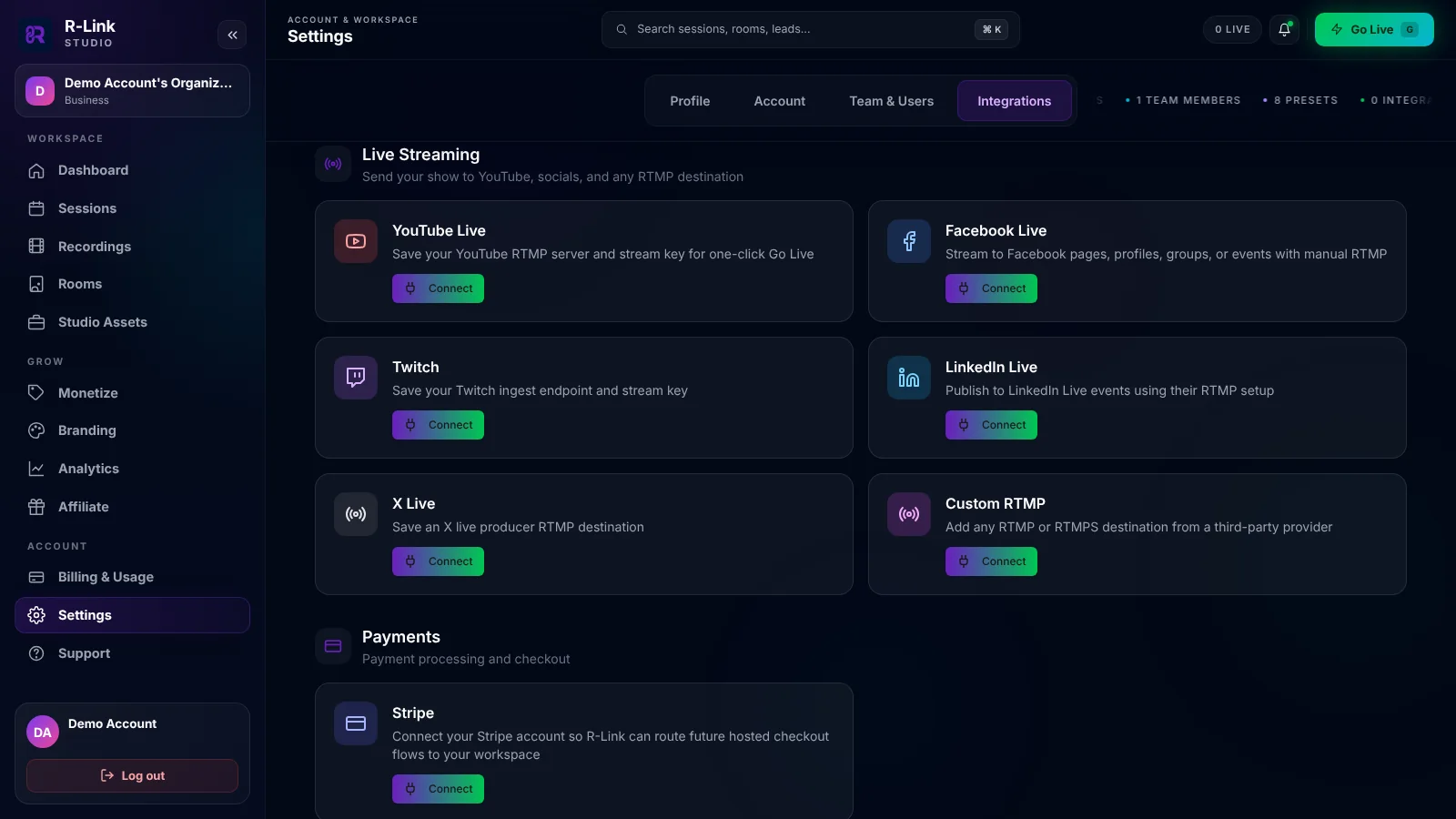
If you want to stream out to Facebook or YouTube or any other social media platform, go to Settings > Integrations and connect your streaming destinations. Then click Go Live in your dashboard, choose your destinations, and go live from the Studio.
The number of simultaneous live streams you can have at any given time depends on your subscription level.
View Options
Along the bottom toolbar are your device and view options. You can turn your microphone, camera, or speakers on or off with one click. You can also send reactions or raise your hand, change your layout, and turn on live captions.
Muting & Unmuting Your Guests
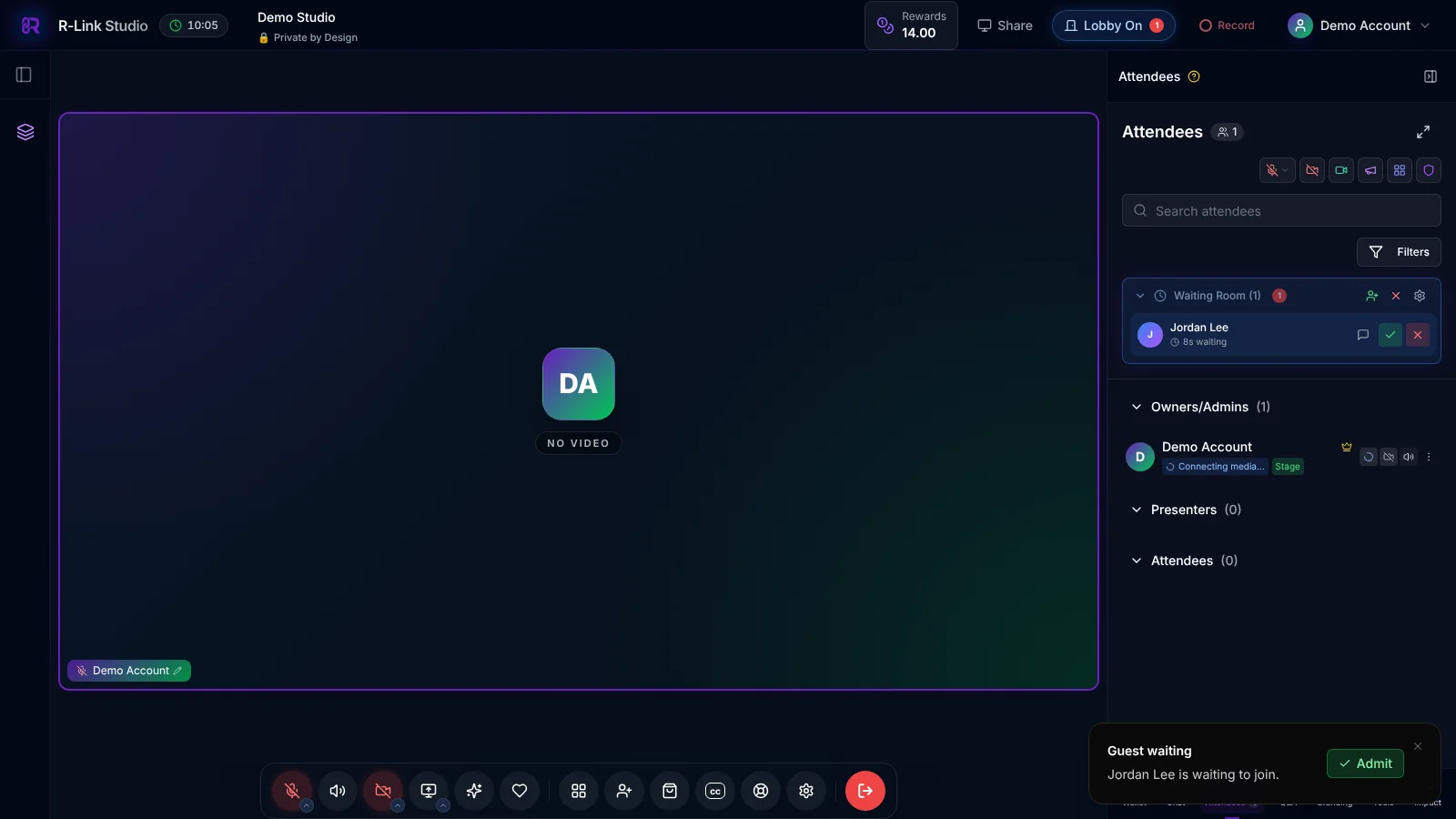
On the right side of your room are your meeting controls. If you open up the Attendees tab, you'll see a row of buttons across the top for managing everyone at once, like muting all of the guests in your room, plus search and filters to find someone quickly.
Waiting Room
The waiting room option lets you manage who can enter your room. Click Lobby in the top bar to turn it on or off. Turning on the waiting room gives you the chance to compare your notes and agenda with fellow hosts before letting in your guests. Waiting guests appear at the top of the Attendees tab, where you can admit them with one click.
Meeting Chat & Sharing Your Screen
You can also open up chat from the right side of your room to message everyone in the room. And of course, R-Link lets you share your screen, a window or a browser tab.
Widgets & Folders
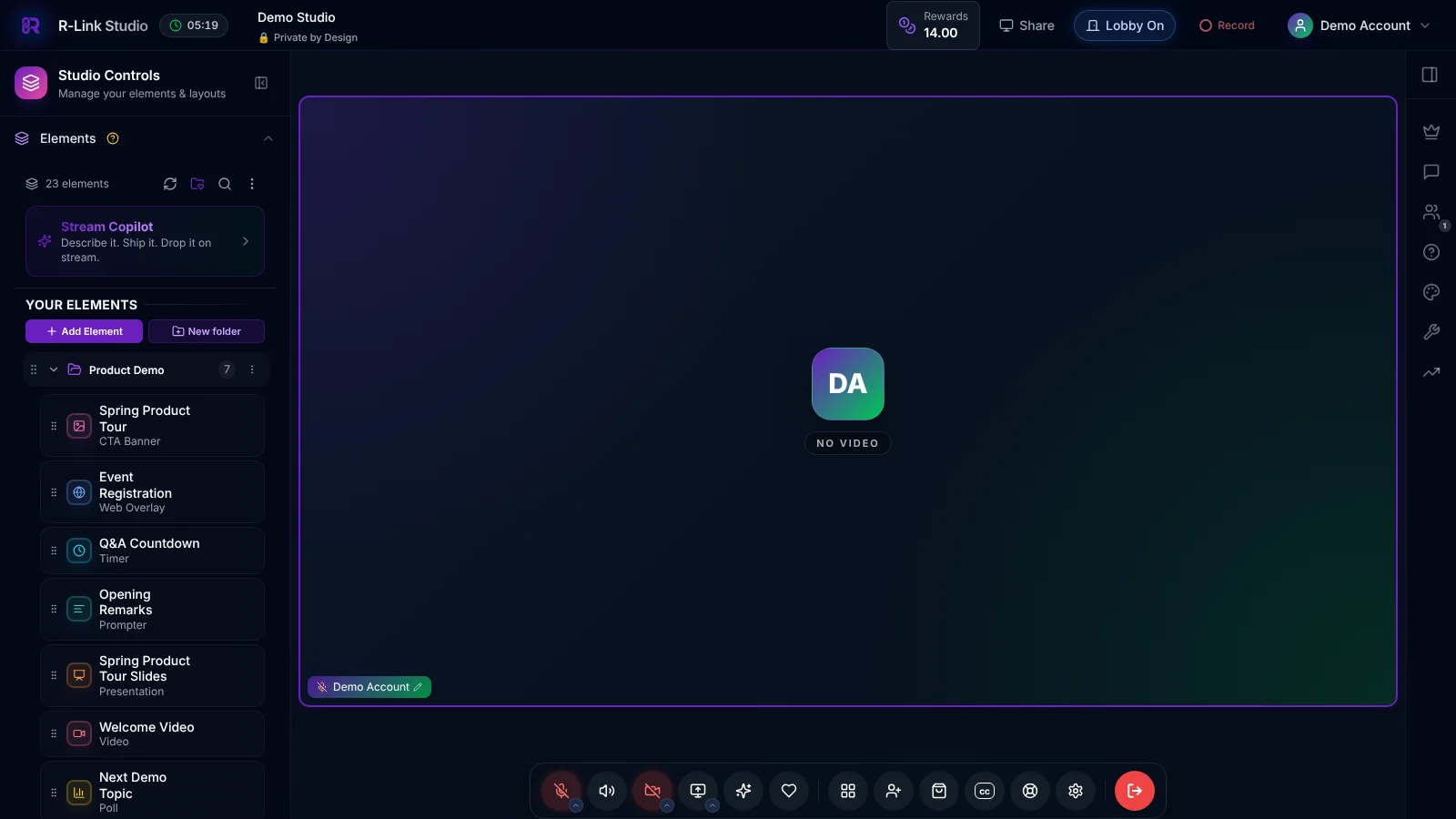
And then we get to the best feature of R-Link, the widgets, now called elements in R-Link Studio. Elements let you create and upload presentation materials to the cloud to use on any device.
You can create a folder and then upload slides and videos and presentation materials to share with your guests. You can also create your own banners, web overlays, timers, polls, presenter scripts, and more.
Elements let you store all the visual aids and resources that you might want to use in an R-Link meeting. You'll find them in the Elements panel in your room and under Studio Assets in your dashboard.
Read my post about Widgets & Folders and learn how to use them to promote your products, services, or links, or to share media files and documents with one click.
Final Thoughts
Now you're ready to host your first R-Link meeting. If you need help or you encounter technical issues, click the in-session support button in the bottom toolbar to send a request without leaving your room, or email the team at support@r-link.com.
We build R-Link Studio, the video platform for meetings, webinars and live streams that sell. Questions about this article? Talk to our team.