Are you looking to elevate your virtual events? R-Link widgets are powerful tools that can transform your online meetings into dynamic, interactive experiences. From custom banners to interactive web pages, these cloud-based features offer endless possibilities for engagement and promotion.
What Are R-Link Widgets?
R-Link widgets are cloud-stored tools that enhance your online meetings. They allow you to:
- Create custom banners and buttons
- Display pop-ups
- Share media files and documents
- Track sales and referrals
Best of all, you can access these widgets from any device, making your meetings more versatile and impactful.
6 Essential R-Link Widgets to Supercharge Your Meetings
1. The Call-to-Action Widget
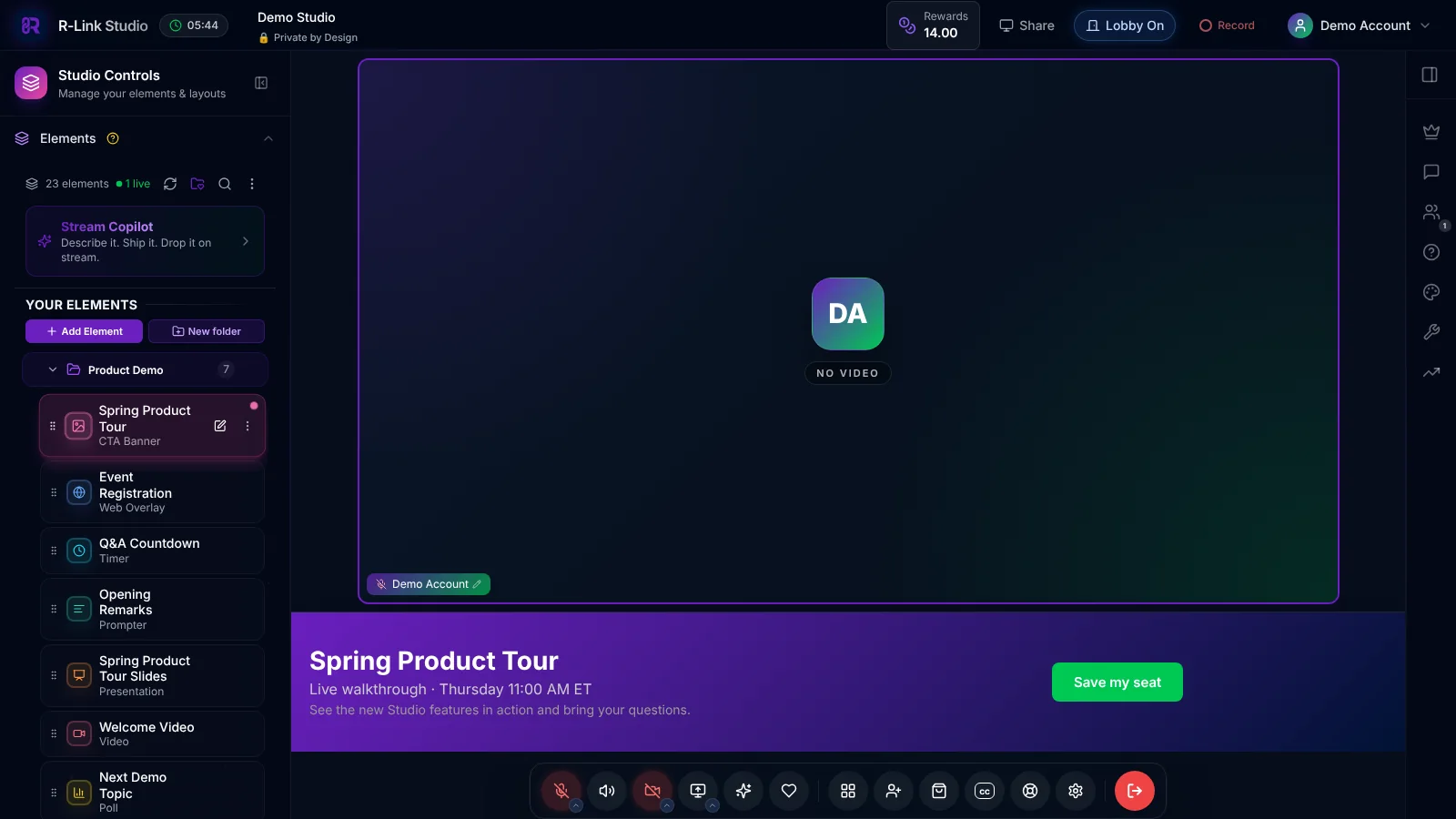
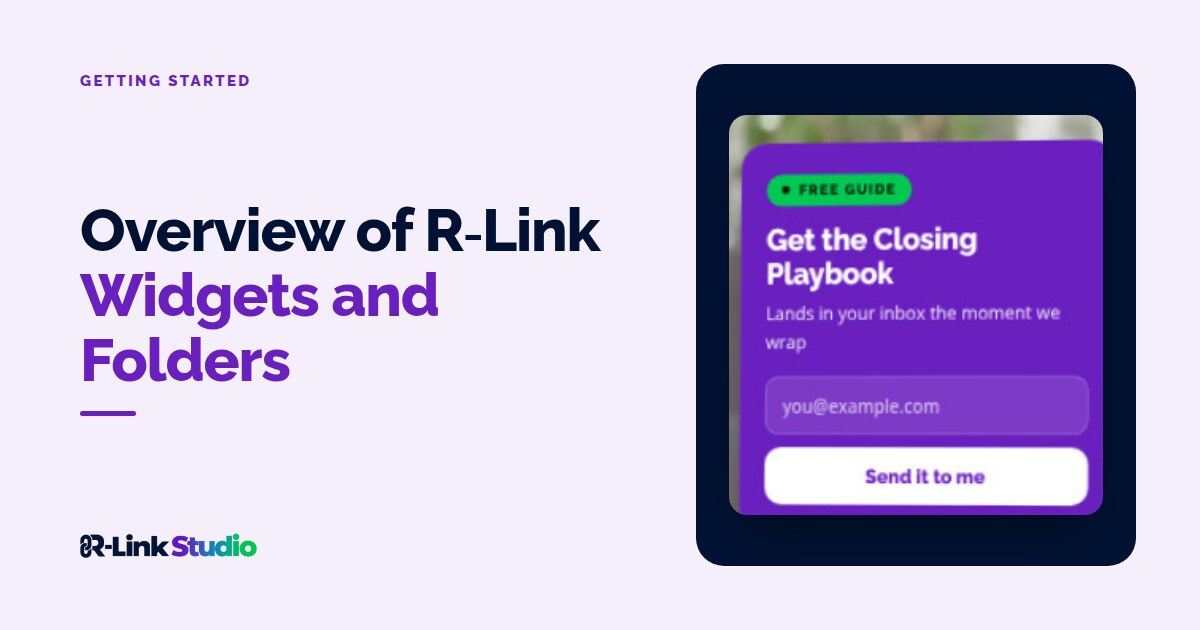
The Call-to-Action Widget lets you use your brand colors and images to create custom call-to-action banners to display during your online meetings. In R-Link Studio, you'll find it as the CTA Banner element.
Create eye-catching banners that:
- Promote upcoming events
- Showcase products or services
- Display disclaimers or speaker bios
2. Webpage Popper Widget
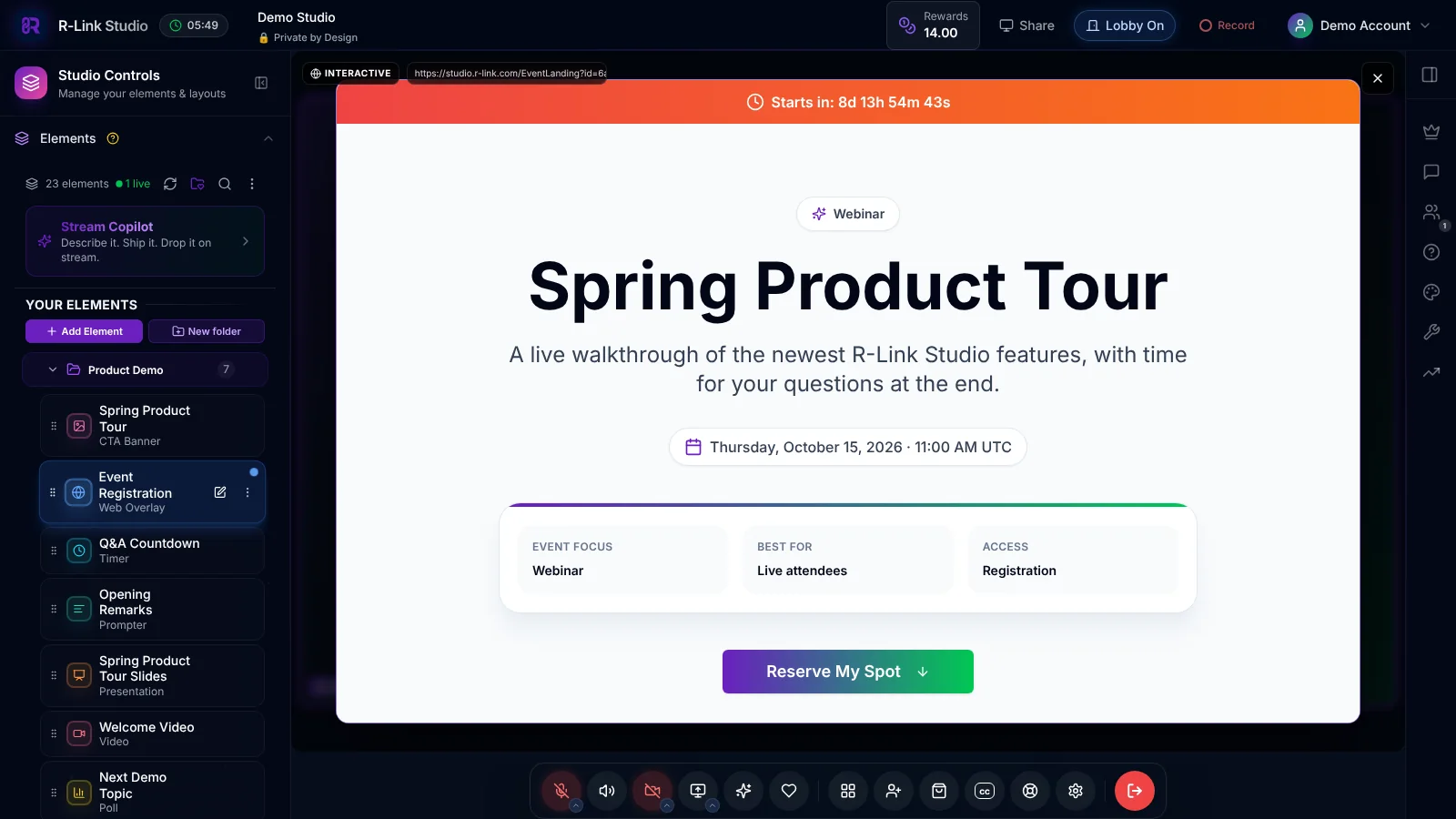
The Webpage Popper Widget lets hosts share a live, interactive web page or online form attendees can fill out securely while in-meeting. In R-Link Studio, it's the Web Overlay element.
Use them to bring interactive web content into R-Link: Registration pages, quizzes, etc. Some shopping pages may not be compatible with IFRAME and should be stored as bookmark bar links or call-to-action links instead.
3. Presenter Note Widget
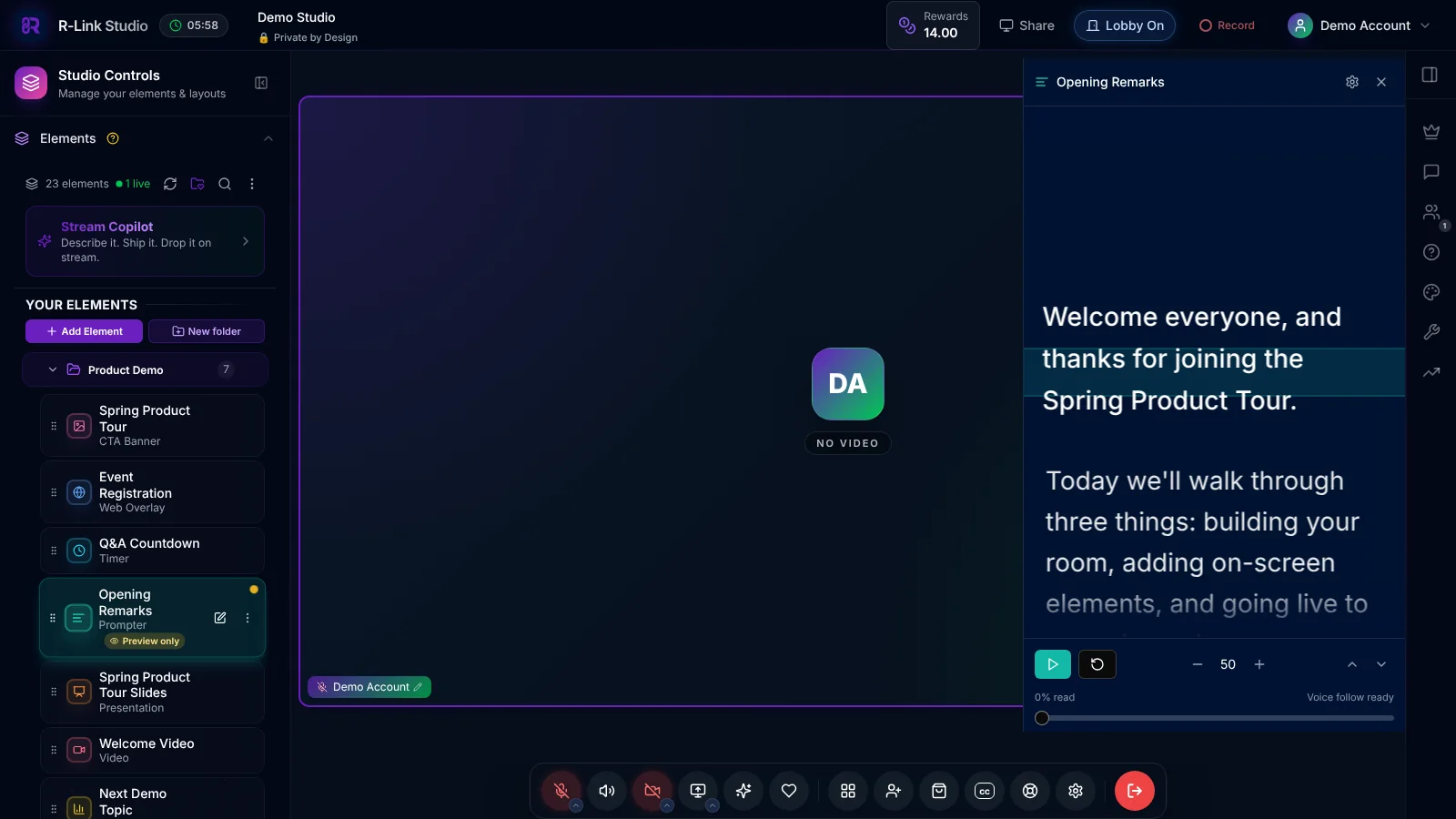
Want to help new distributors, coaches, or sales agents hit the ground running? Add Presenter Notes to your widget folders to give them a helping hand. In R-Link Studio, presenter notes are Prompter elements: a scrolling script that only the host sees, so it never shows up for your audience or in the recording.
Use Presenter Notes for scripts, disclaimers, or host instructions. They are a great way to remind reps to follow best practices or share critical information during their R-Link sessions.
4. Custom Button (formerly the Button Bar Widget)
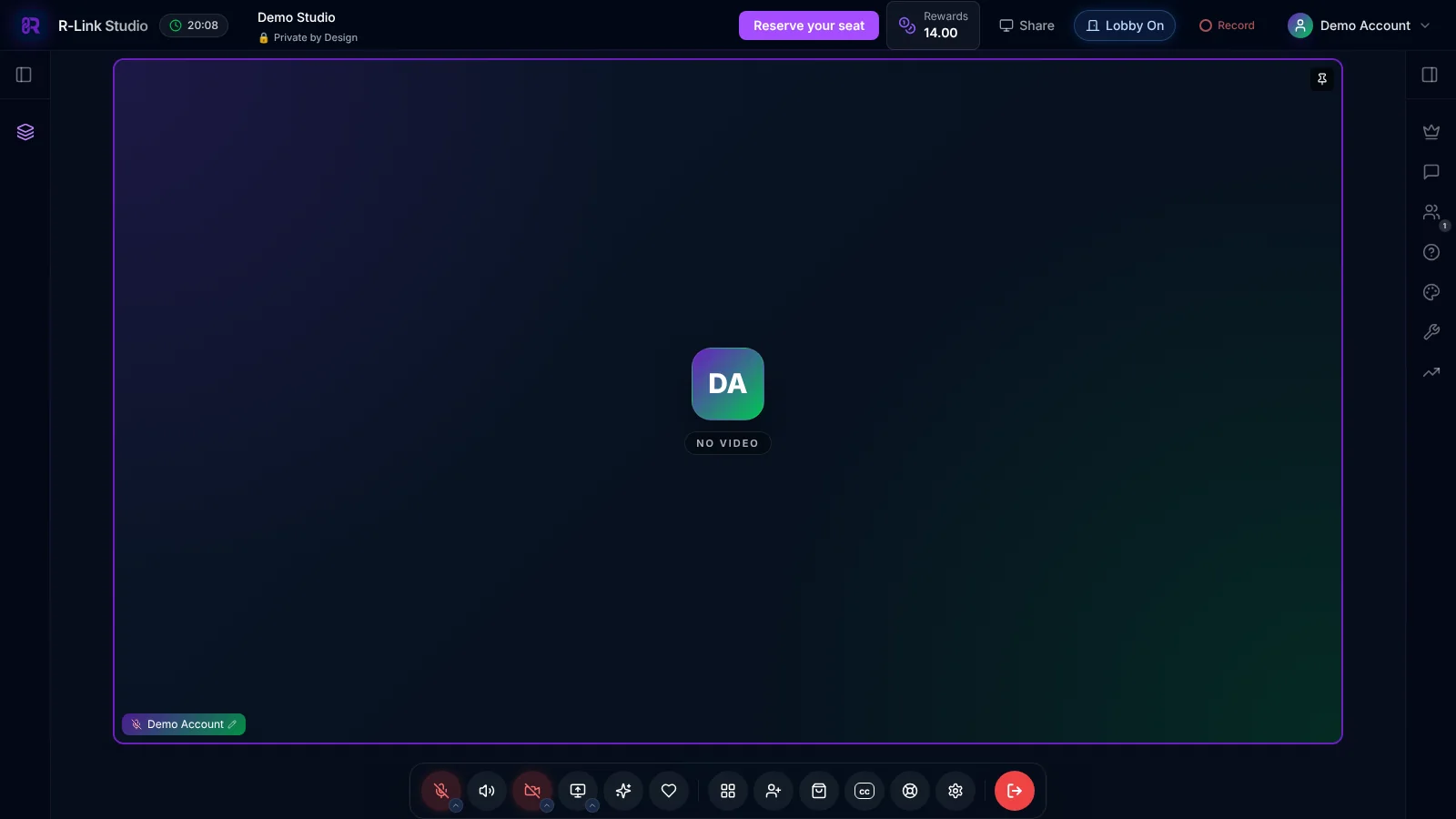
Share your most popular page with a branded button that stays in the top bar of your R-Link room. On the Business plan, edit your room, open Business Plan Settings and turn on Custom Button, then add the button text and link.
You can point it to your homepage or a replicated shopping/affiliate site, to a featured product, or to an event registration page. Need more than one button? Add primary and secondary buttons to a CTA Banner.
5. Upload Media Widget
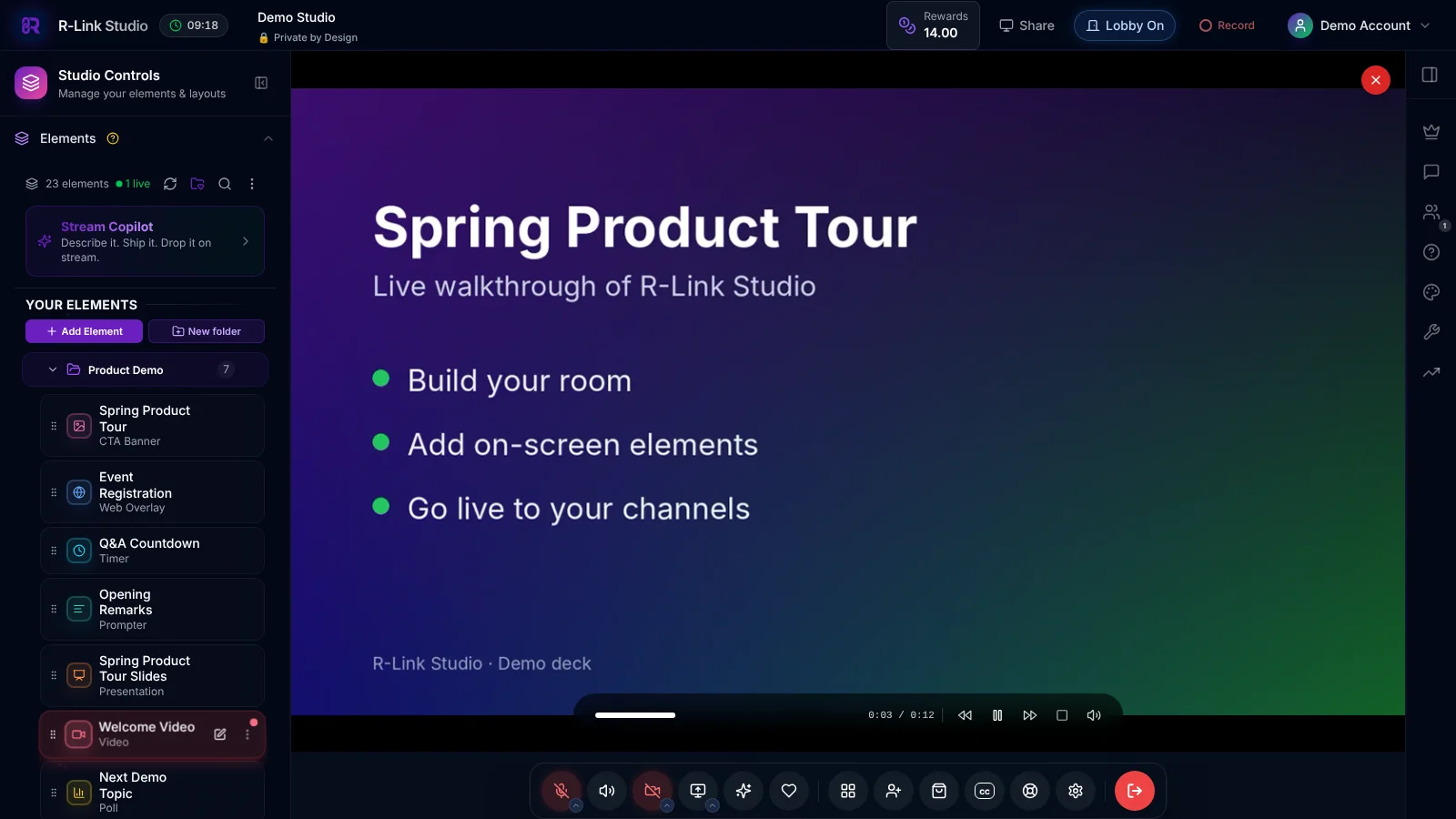
Upload your media files to play in HD quality without ads, post-reel cards, or interruptions. Or upload PDFs of popular PowerPoints for cloud-based presentations. Sort media files into folders according to purpose or file type for easy reference. For example, “Opportunity,” “Products,” or “Spring Promo,” or into “Videos,” “Slides,” and “PDFs.”
Note: In R-Link Studio, upload media as Video (MP4, MOV, WebM), Audio, Image / File, or Presentation elements (PDF, PowerPoint, Keynote, or JPG/PNG/GIF slides).
6. Timer Widget
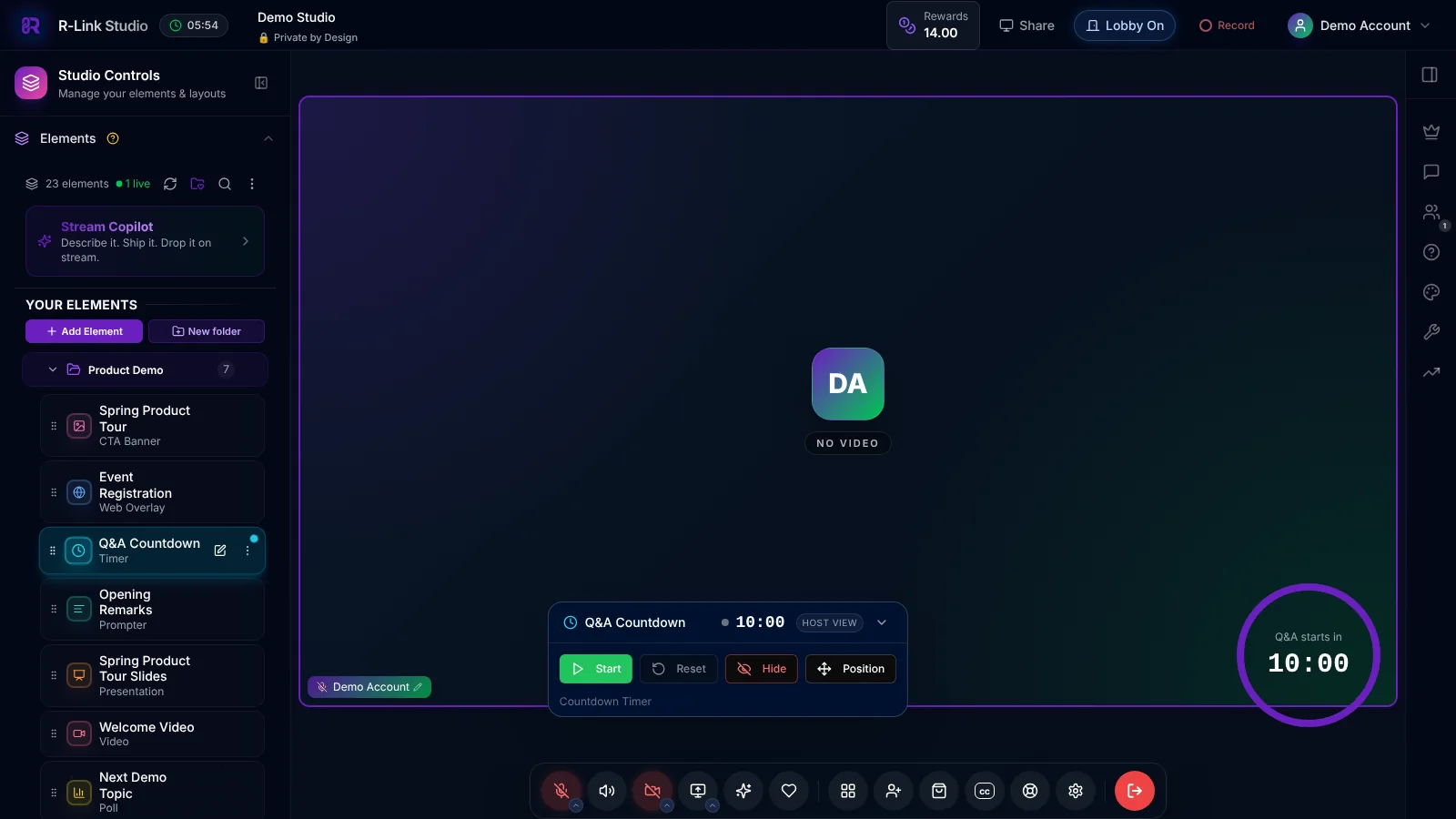
Keep your presentations running smoothly with the Timer Widget! Use it to help keep guest speakers on time, or to track breaks and quiz times. You can use the Timer widget to time your full presentation or a single segment, and can choose to show it to your attendees or hide it so that only hosts can see it.
Note: Timer settings include Countdown, Date Countdown and Count Up, plus urgency colors that warn speakers their time is running out.
Bonus: Featured Chat Messages
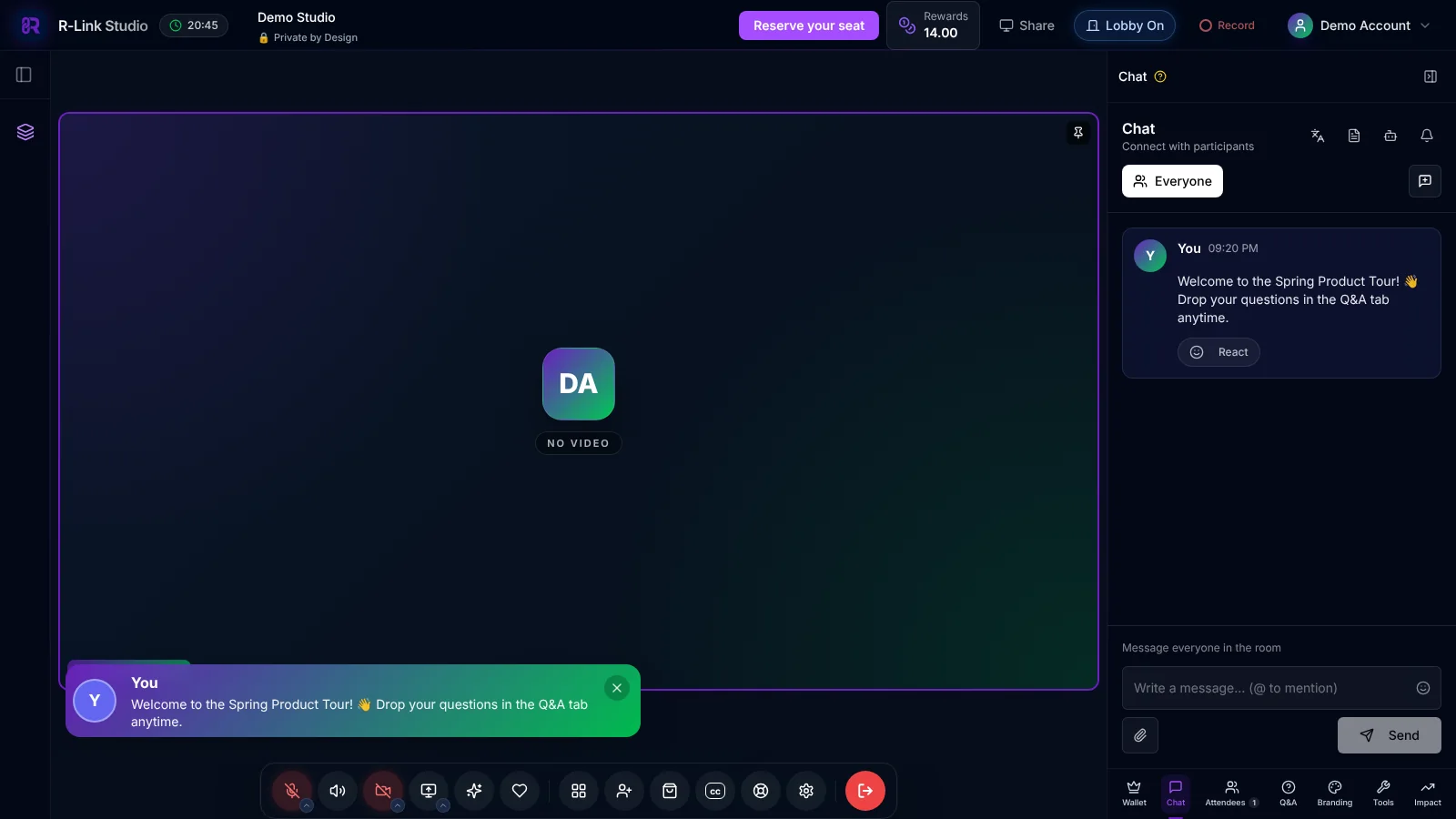
While it’s not officially a widget, R-Link offers yet another way to add excitement to a meeting – by featuring CHAT messages in the main presentation! Just hover over a chat message and click the star (Feature message) button to highlight it to your audience.
Featured chat messages are a great way to personally greet audience members, or highlight questions and responses during interactive Q&A sessions.
Best Practices for R-Link Widgets
- Organize widgets into folders for easy access
- Use descriptive names (e.g., "Welcome Video English")
- Limit widget names to 25 characters
- Customize colors and designs to match your brand
By leveraging these powerful R-Link widgets, you can create more engaging, professional, and effective online meetings. Start exploring these features today and watch your virtual events transform!
We build R-Link Studio, the video platform for meetings, webinars and live streams that sell. Questions about this article? Talk to our team.