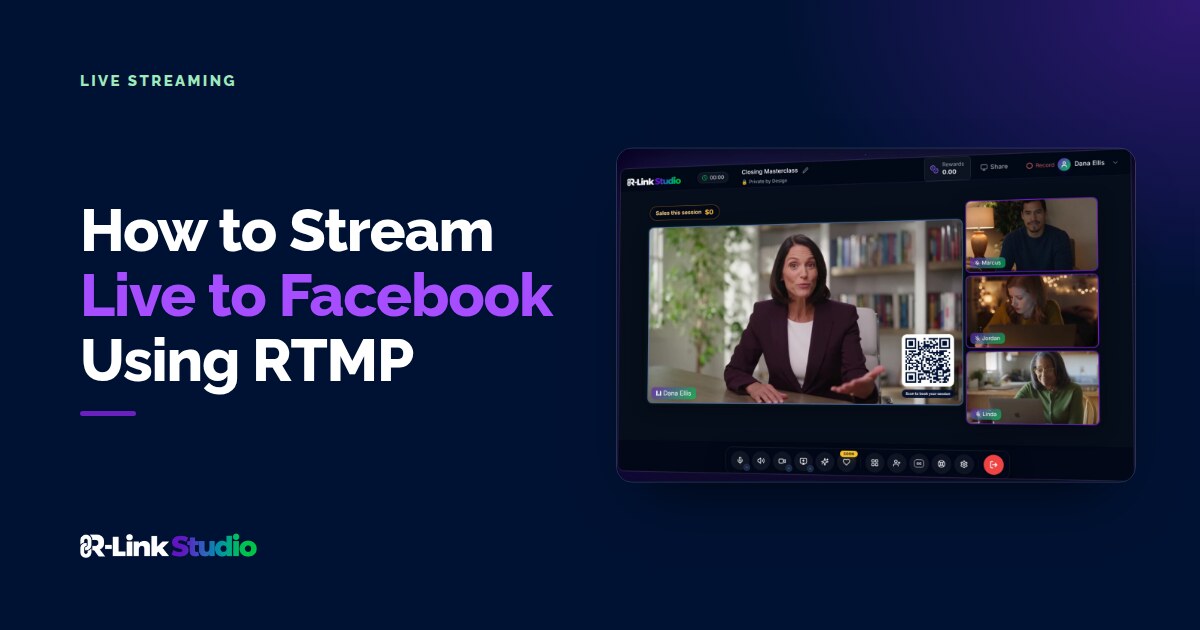
Ready to take your Facebook presence to the next level? R-Link makes it easy to broadcast high-quality live streams directly to your Facebook audience.
Here is a step by step guide on how to set up RTMP streaming for your Facebook account using R-Link:
Setting Up Your Facebook Stream
- Log in to your Facebook account and go to https://web.facebook.com/live/producer/
- In the Go live column, toggle on Create a test broadcast before going live.
- Click Go Live.
- Under Select a video source, choose Streaming software.
- Next to Stream key, click Copy.
- Click the drop-down arrow to open Advanced Settings just below.
- Toggle on Persistent stream key.
With this turned on, you can reuse the same key every time you go live, so you don’t have to reconnect for each session.
- Under Server URL, click Copy. You’ll need the server URL and stream key to stream from R-Link.
Connecting Facebook LIVE to R-Link
- In a separate tab, log in to R-Link Studio and go to Settings > Integrations. Scroll to Live Streaming.
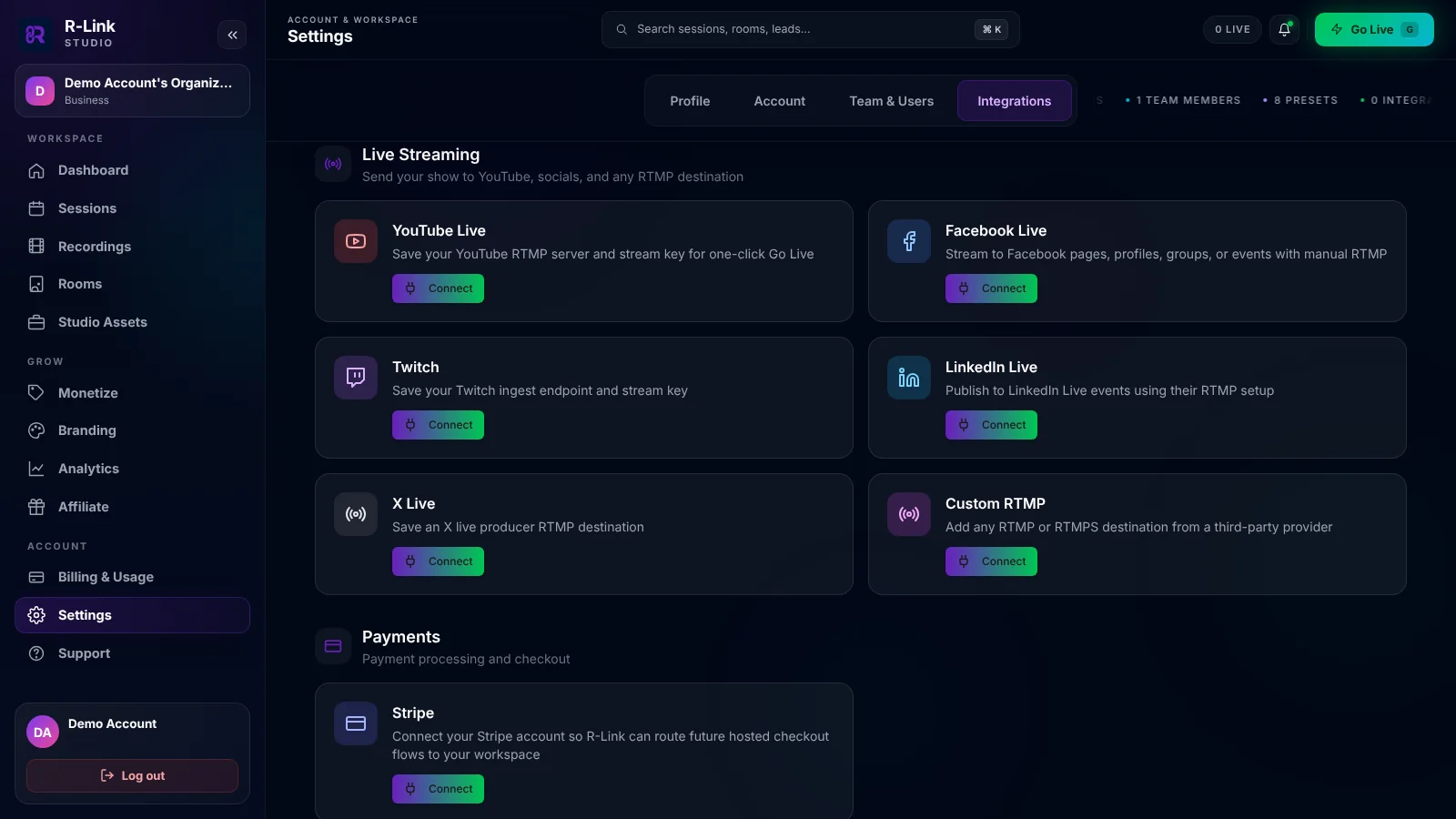
- Click Connect on Facebook Live.
- Give the destination a name, paste the Server URL into RTMP Server URL, and paste your Stream Key from Facebook LIVE.
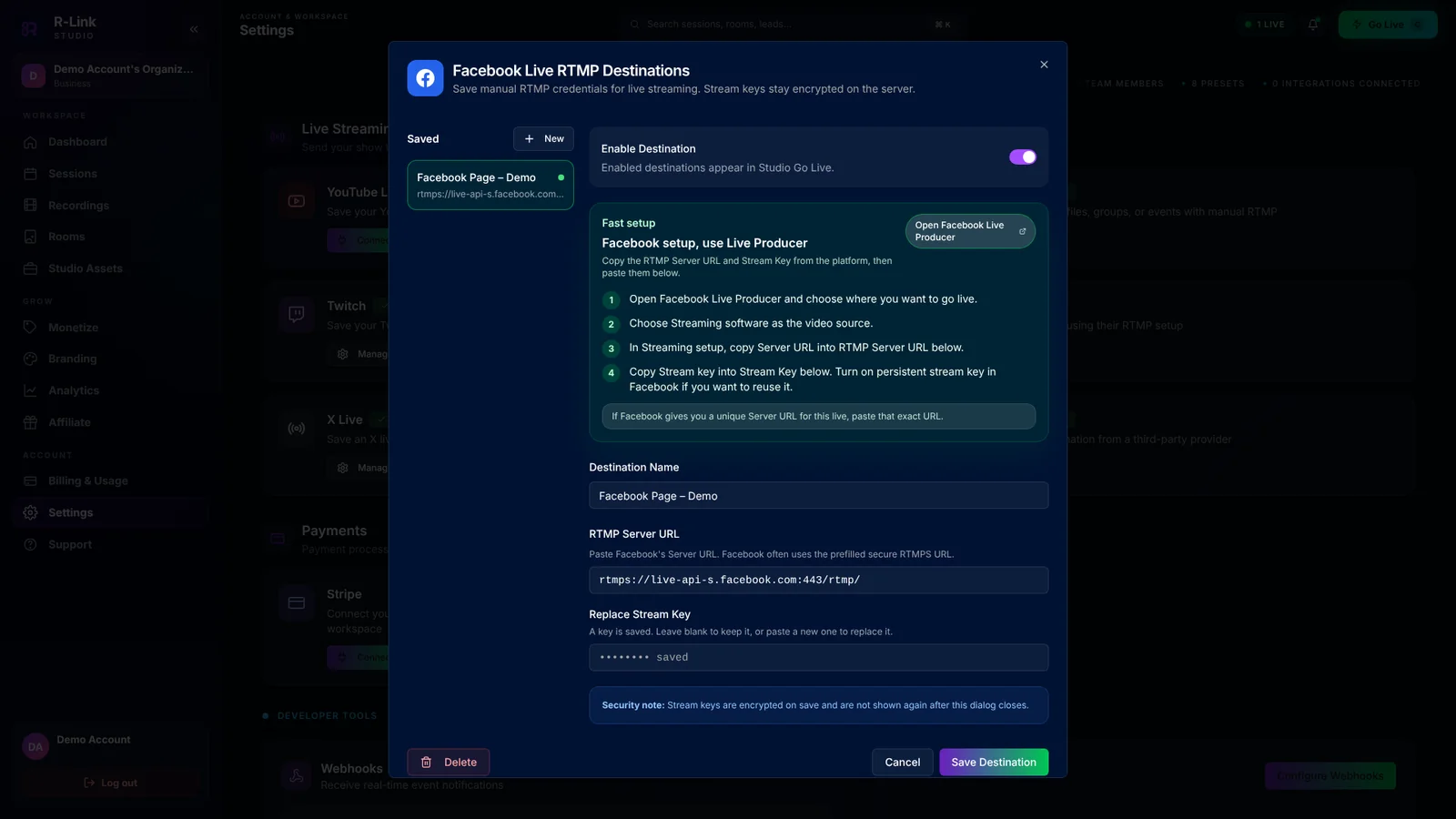
- Click Add Destination. Your stream key is encrypted and saved, so you only need to do this once.
Going Live
- When you’re ready to go live, click Go Live in your dashboard and choose Go on air.
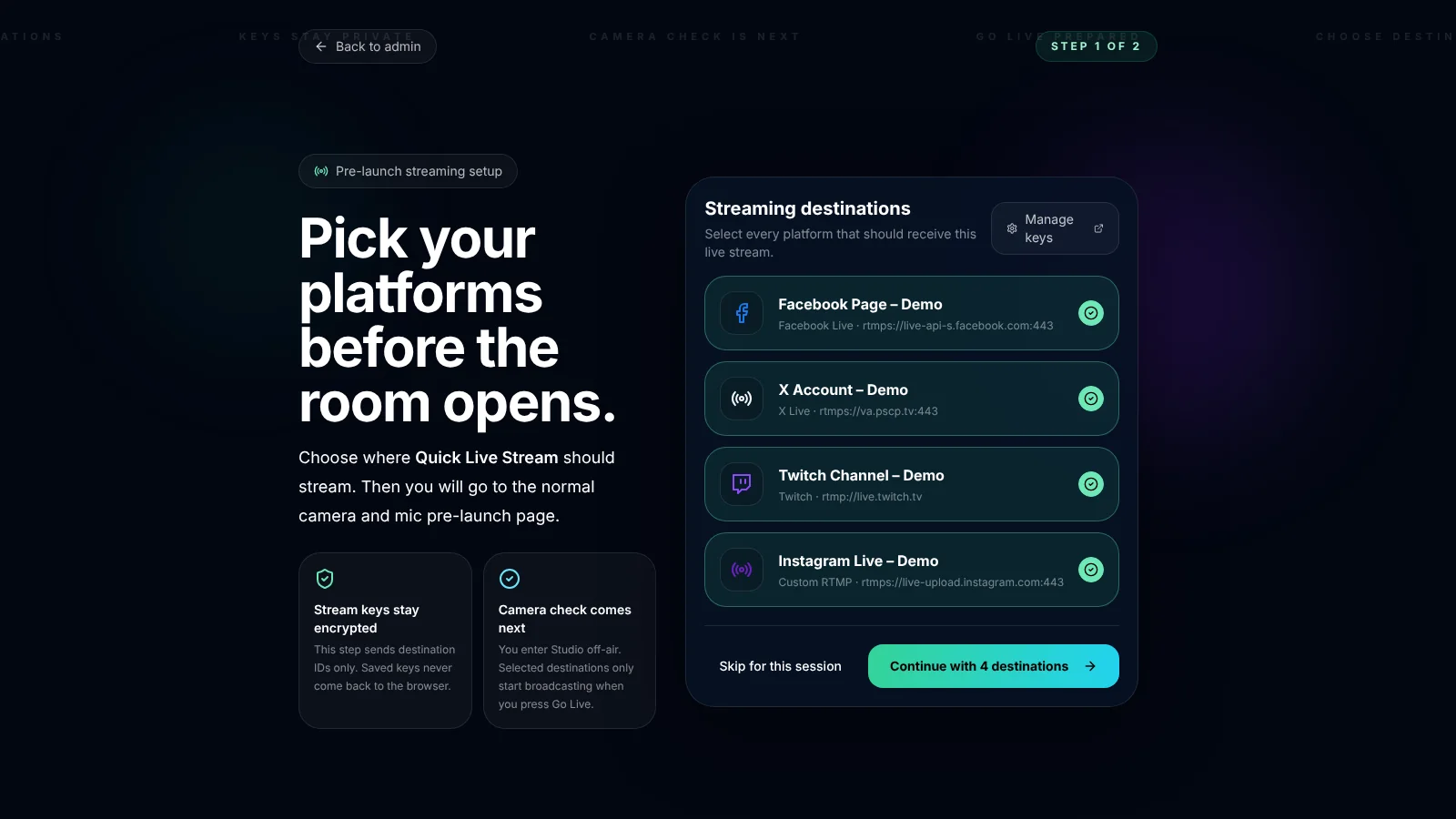
- Select the destinations you want to include in your stream, then click Continue and enter the Studio.
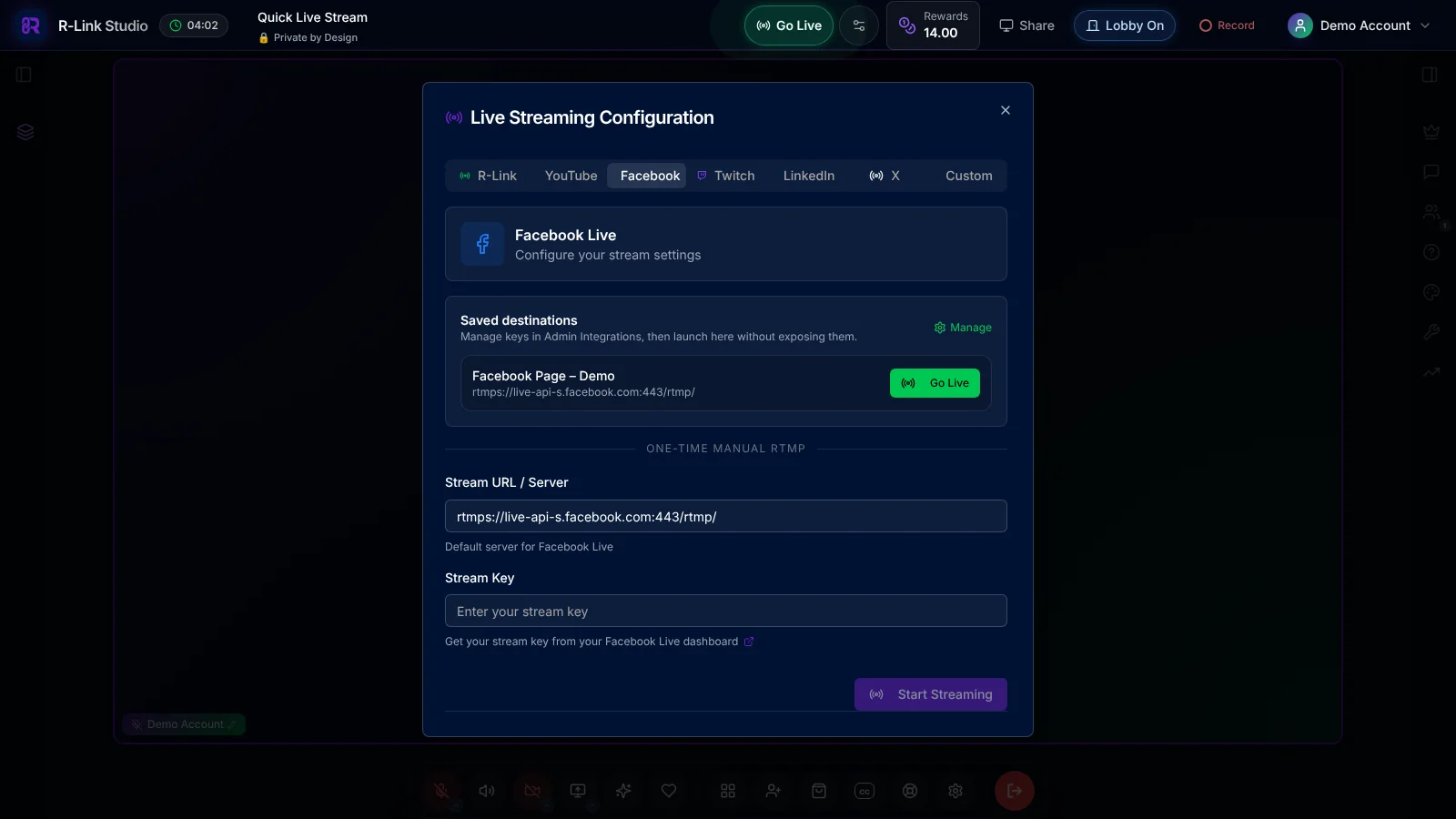
- Click Go Live at the top of the Studio to start streaming to your selected destinations. You can also open the streaming settings next to it and click Go Live on a saved destination.
Remember, a stable internet connection is crucial for smooth streaming. Always test your setup before going live to ensure the best experience for your viewers.
By following these steps, you'll be broadcasting your R-Link events on Facebook in no time, reaching a wider audience with your awesome sauce!

We build R-Link Studio, the video platform for meetings, webinars and live streams that sell. Questions about this article? Talk to our team.