Ready to take your Instagram Live experience to the next level? RTMP (Real-Time Messaging Protocol) streaming offers a powerful way to broadcast high-quality video directly to your audience.
Why RTMP Streaming Will Make You the Coolest Kid on the Instagram Block
RTMP (Real-Time Messaging Protocol) isn't just another boring acronym – it's your secret weapon for broadcasting high-quality video directly to your Instagram followers. Think of it as the James Bond of streaming protocols: smooth, efficient, and always dressed to impress.
How to Locate Your Stream Key
First things first, let's get our hands on that your Instagram stream key. Follow these steps, and try not to feel too much like a secret agent:
- Make sure you have a Professional Instagram account.
- Open instagram.com
- Click the “Add post” button (plus symbol inside a square) and
- Select Live from the dropdown menu.
- In the Go Live screen, give your stream a killer title and choose your audience
- Practice for a secret rehearsal
- Public will broadcast to your followers as a normal live video would
- Viola! You will then see a screen that contains your unique URL and Stream Key.You will need these to stream from R-Link.
Linking Instagram to R-Link (It's Like Avocado and Toast, But Cooler)
Now, let's make R-Link and Instagram best friends forever:
- In a separate tab, log in to R-Link Studio and go to Settings > Integrations. Do not close the Instagram tab.
- Under Live Streaming, click Connect on Custom RTMP.
- Give the destination a name like "Instagram Live", then enter your URL as the RTMP Server URL and your Stream Key from Instagram.
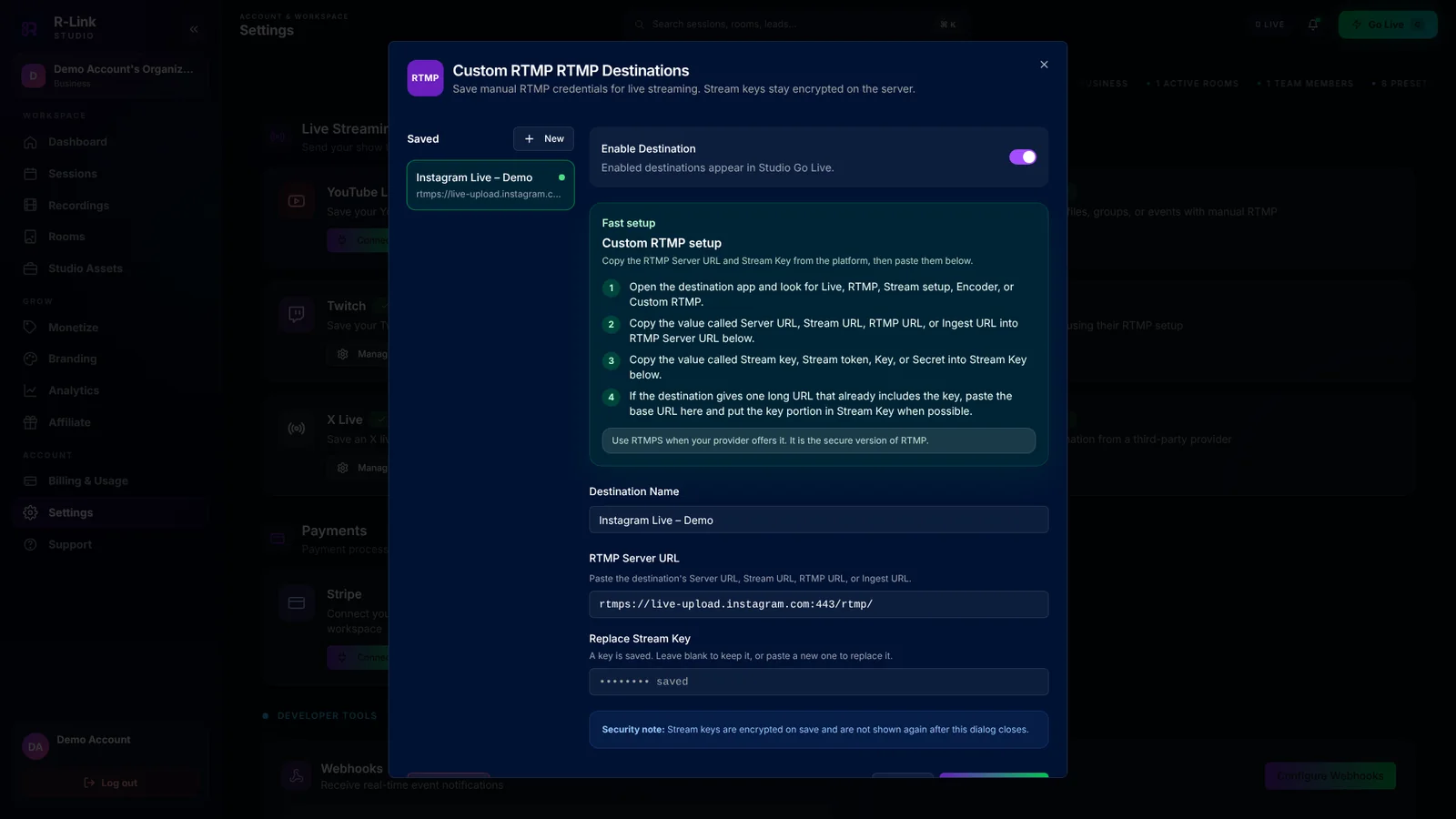
- Click Add Destination.
Going Live on Instagram
When you're ready to blow minds and take names:
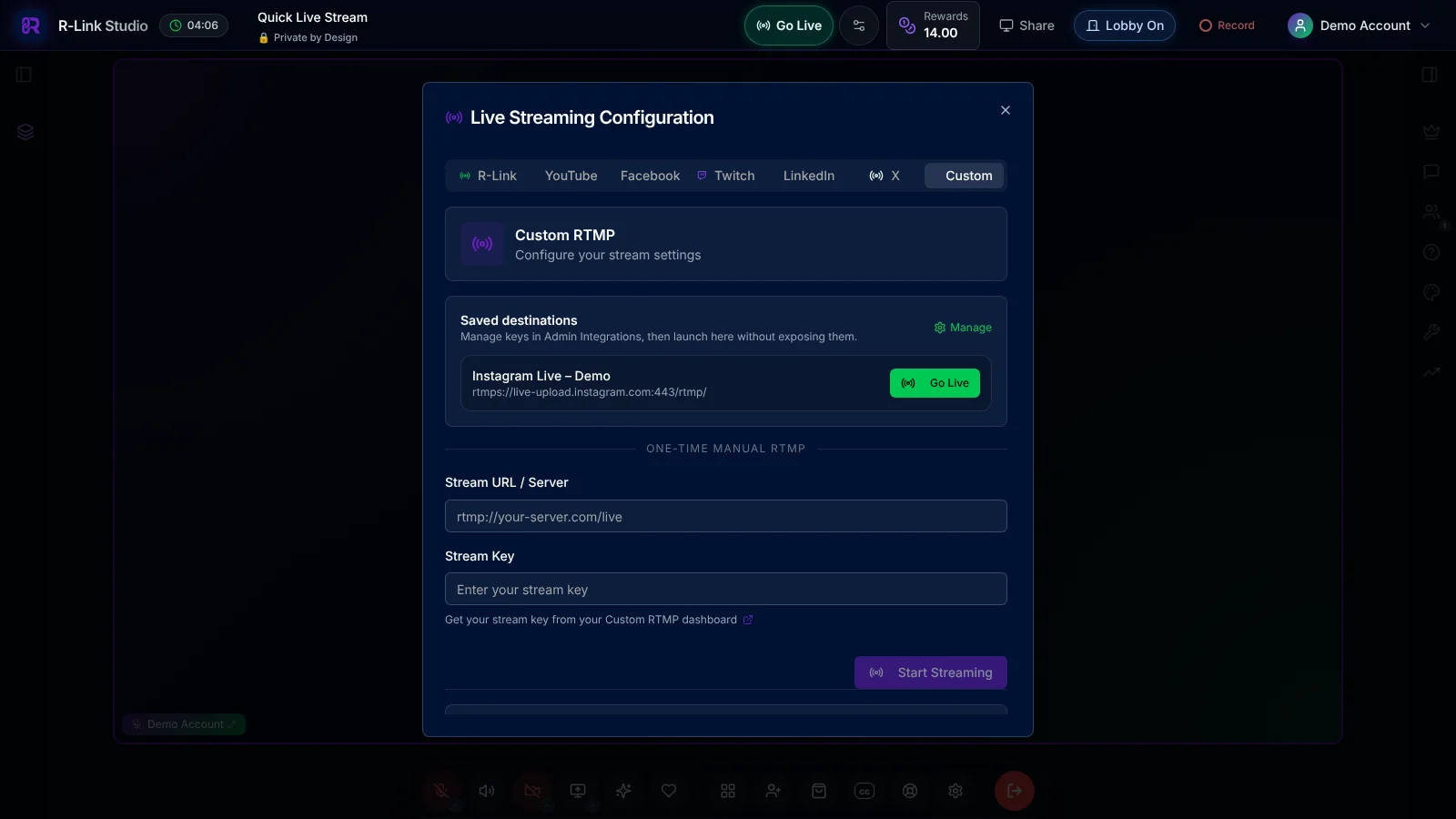
- Click Go Live in your R-Link dashboard and choose Go on air
- Select the destinations you want to include in your stream, then enter the Studio
- Click Go Live and watch the magic happen. You can also open the streaming settings in the Studio and click Go Live on your saved Instagram destination.
Instagram Live Hacks to Boost Your Fame
- Engage with comments in real-time: Show your audience some love!
- Use eye-catching visuals: Because a picture is worth a thousand words (or likes)
- Collaborate with other creators: Two streams are better than one
- Tease exclusive content: Keep 'em coming back for more
- Cross-promote on your Stories: Build that hype, baby!
Remember, Instagram Live success is part preparation, part perspiration, and a whole lot of R-Link magic to make your streams smoother than your favorite face-tuning app.
Now, go forth and conquer the Instagram universe! When your followers ask how you got so fabulous, just smile and say, "It's called R-Link!".

We build R-Link Studio, the video platform for meetings, webinars and live streams that sell. Questions about this article? Talk to our team.