Ready to dominate the streaming world and make your competitors weep into their keyboards? Buckle up – we're about to dive into the deliciously sneaky world of RTMP streaming on Twitch using R-Link. It's time to get hacky!
Why RTMP Streaming Will Make You the Coolest Kid on the Twitch Block
RTMP (Real-Time Messaging Protocol) isn't just another boring acronym – it's your secret weapon for broadcasting high-quality video directly to your Twitch followers. Think of it as the James Bond of streaming protocols: smooth, efficient, and always dressed to impress.
Where to Snag Your Twitch Stream Key (Without Breaking a Sweat)
First things first, let's get our hands on that precious Twitch stream key. Follow these steps, and try not to feel too much like a secret agent:
- Log into your Twitch account at twitch.tv
- Click on your profile photo at the top-right corner
- From the dropdown menu that appears, choose Creator Dashboard
- Select Settings from the menu on the left-hand side
- Choose Stream
- Your Primary Stream Key shows at the top of the screen.
- For the Server URL, use rtmp://live.twitch.tv/app/
- You may reset your stream key at any time from the same place it is found in your Stream Settings. Refreshing your stream key changes your key for yourself only, and does not invalidate any Authorized Streamers.
Pro tip: For the Server URL, always use rtmp://live.twitch.tv/app/ – it's like the bat signal for RTMP streaming.
Linking Twitch to R-Link (It's Like Peanut Butter and Jelly, But Cooler)
Now, let's make R-Link and Twitch best friends forever:
- Log in to R-Link Studio in a new tab
- Go to Settings > Integrations (sounds important, doesn't it?)
- Under Live Streaming, hit Connect on Twitch (because more destinations = more awesome)
- Name your destination and paste your Twitch Stream Key (remember that?). The Twitch server URL is already filled in for you.
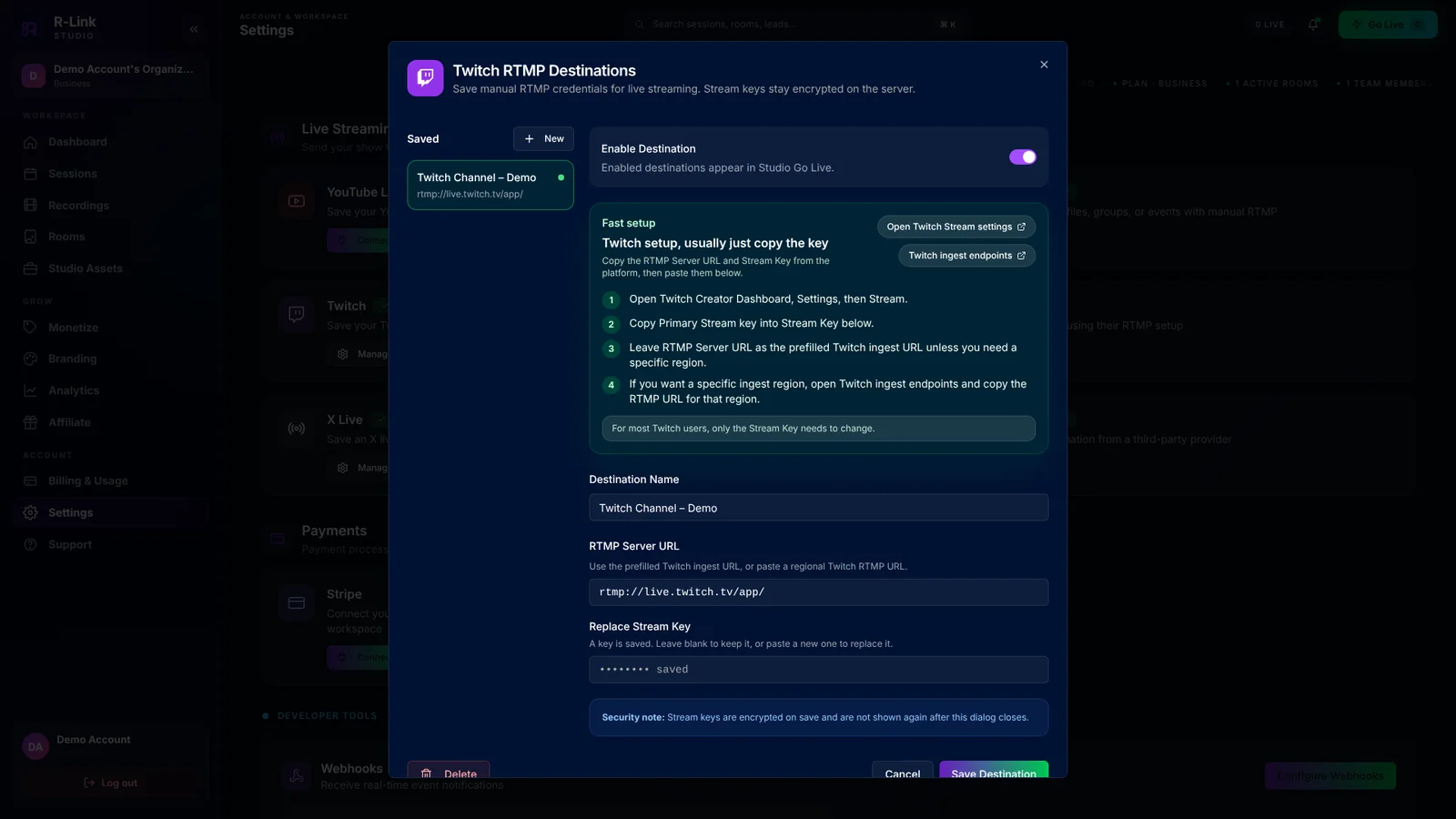
- Click "Add Destination" (and feel like a tech genius)
Going Live: Time to Make Your Competitors Cry
When you're ready to blow minds and take names:
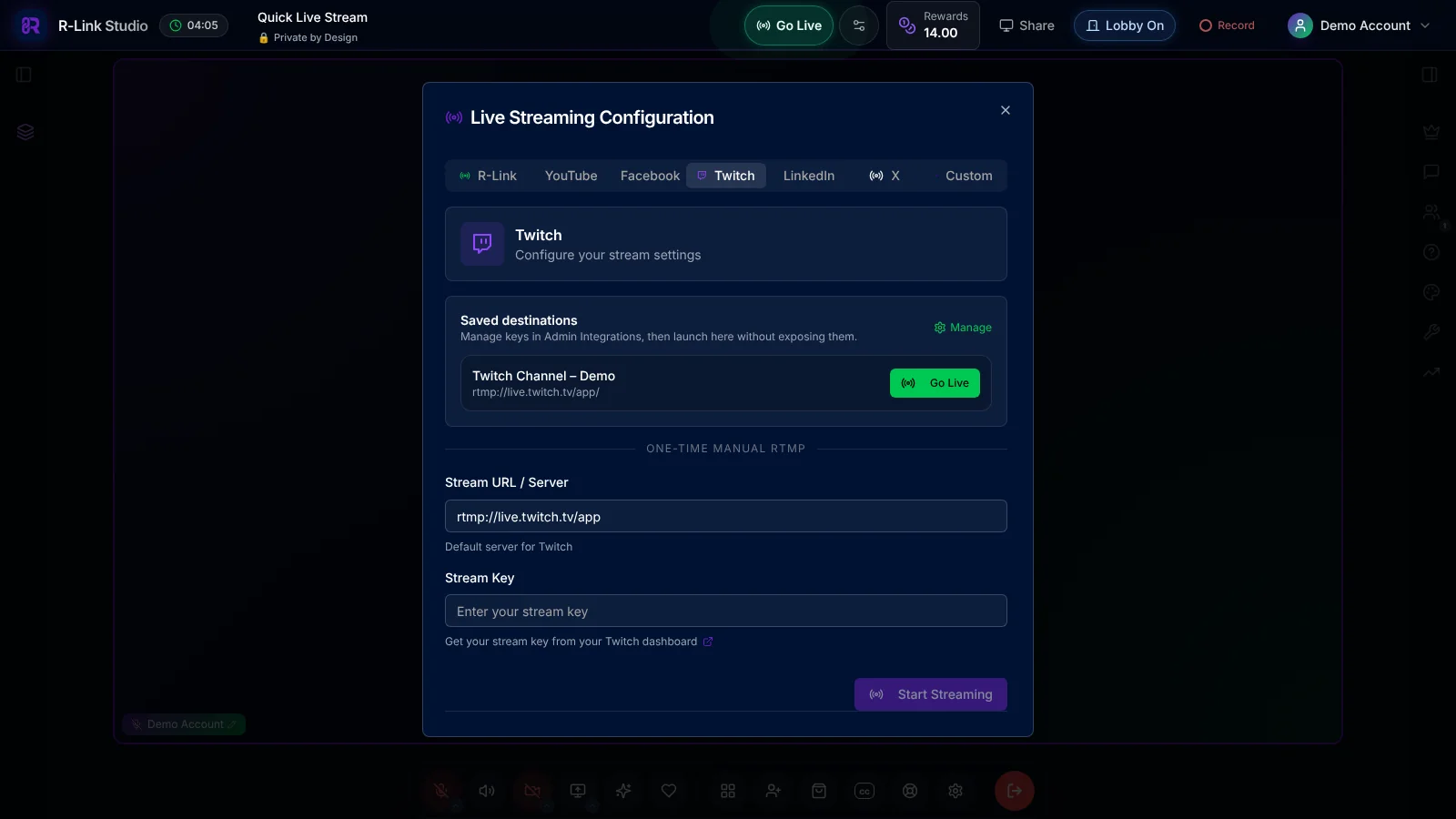
- Click "Go Live" in your dashboard and choose "Go on air"
- Select your streaming destinations (the more, the merrier) and enter the Studio
- Click "Go Live" and watch the magic happen. You can also open the streaming settings in the Studio and go live on your saved Twitch destination.
Bonus Hacks to Skyrocket Your Twitch Fame
- Optimize for voice search: Because talking is the new typing, darling.
- Create skyscraper content: Go big or go home, right?
- Leverage user-generated content: Let your fans do the work (they love it, trust us).
- Focus on Core Web Vitals: Speed kills... your competition, that is.
- Implement topic clusters: Because who doesn't love a good party?
Remember, streaming success is 10% inspiration, 90% perspiration, and 100% using R-Link to make your streams look so good, your viewers will think they've died and gone to pixel heaven.
Now go forth and conquer the Twitch universe! And if anyone asks how you got so awesome, just wink and say, "R-Link, baby. R-Link.

We build R-Link Studio, the video platform for meetings, webinars and live streams that sell. Questions about this article? Talk to our team.