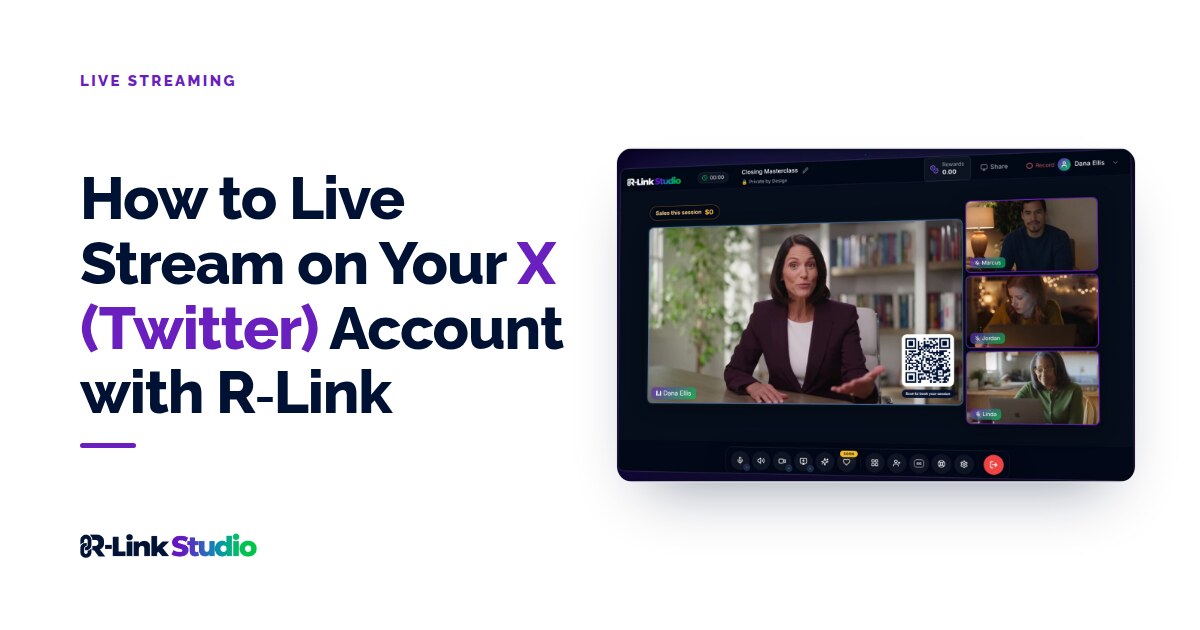
Ready to take your X (formerly Twitter) presence to the next level? R-Link makes it easy to broadcast high-quality live streams directly to your X audience. Here's how to set up RTMP streaming for your X account using R-Link:
Setting Up Your X Stream
- Log in to your X account and go to https://studio.x.com/producer
- Click Sources.
- Click Create Source in the top right corner.
- Give your new source a name, ensure RTMP is selected, and select your region. Click Create.
- The Source details window shows your unique RTMP URL and RTMP stream key. Copy both (you’ll need them to stream from R-Link), then click Done.
Connecting X to R-Link
- In a separate tab, log in to R-Link Studio and go to Settings > Integrations. Scroll to Live Streaming.
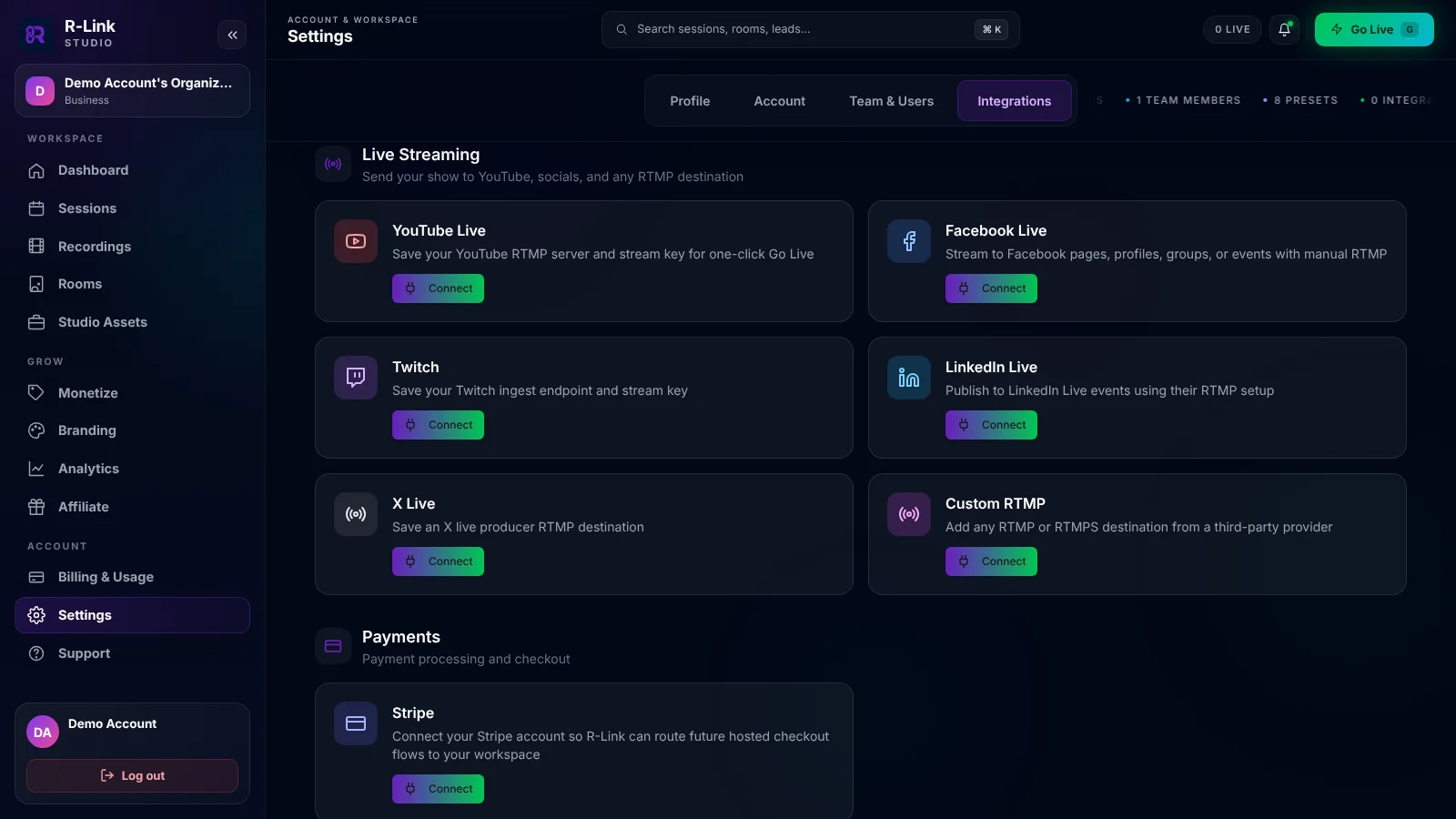
- Click Connect on X Live.
- Give the destination a name, then enter your URL as the RTMP Server URL and your Stream Key from X.
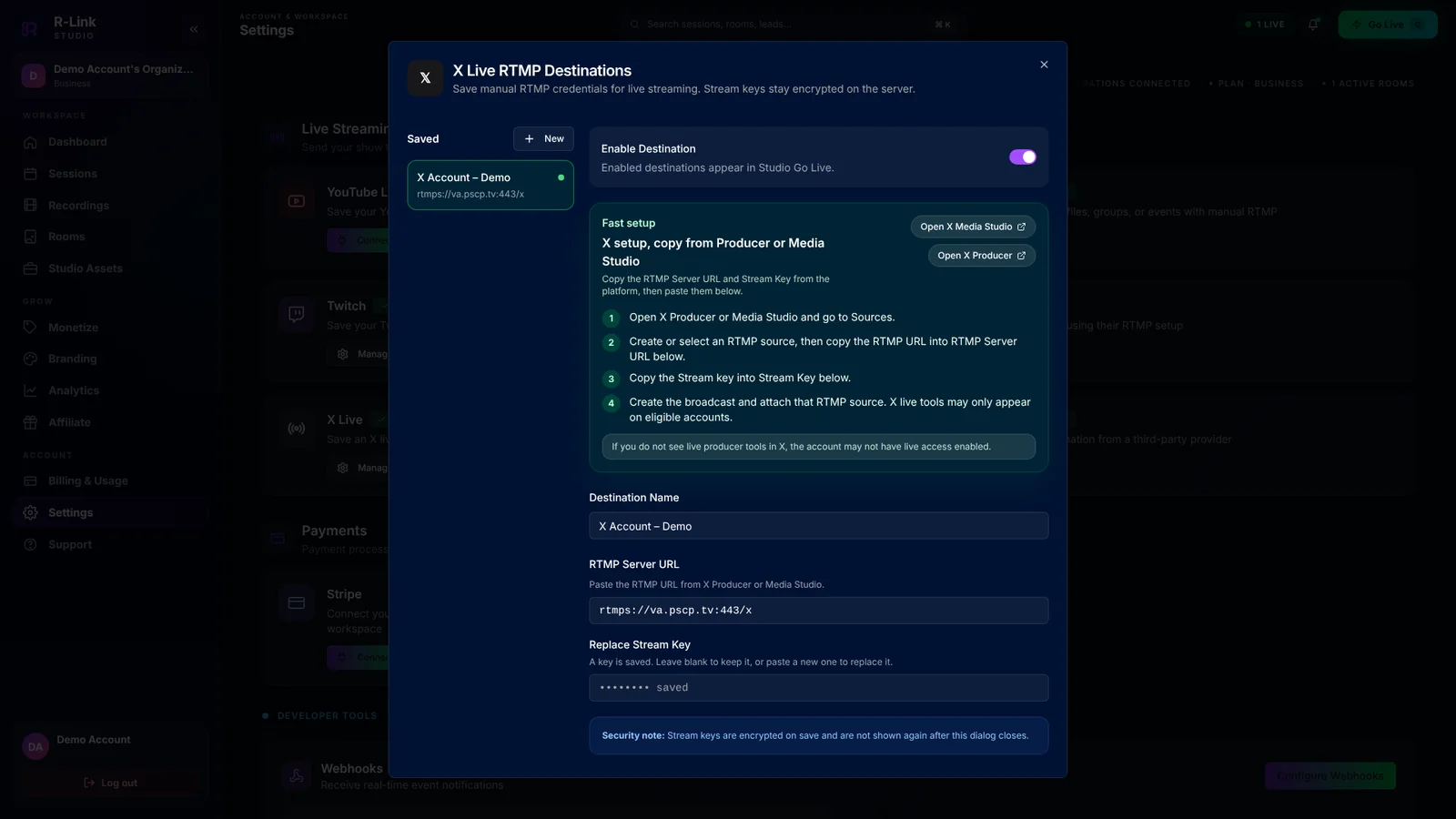
- Click Add Destination.
Going Live on X (Twitter)
- When you’re ready to go live, click Go Live in your dashboard and choose Go on air.
- Select the destinations you want to include in your stream, then click Continue and enter the Studio.
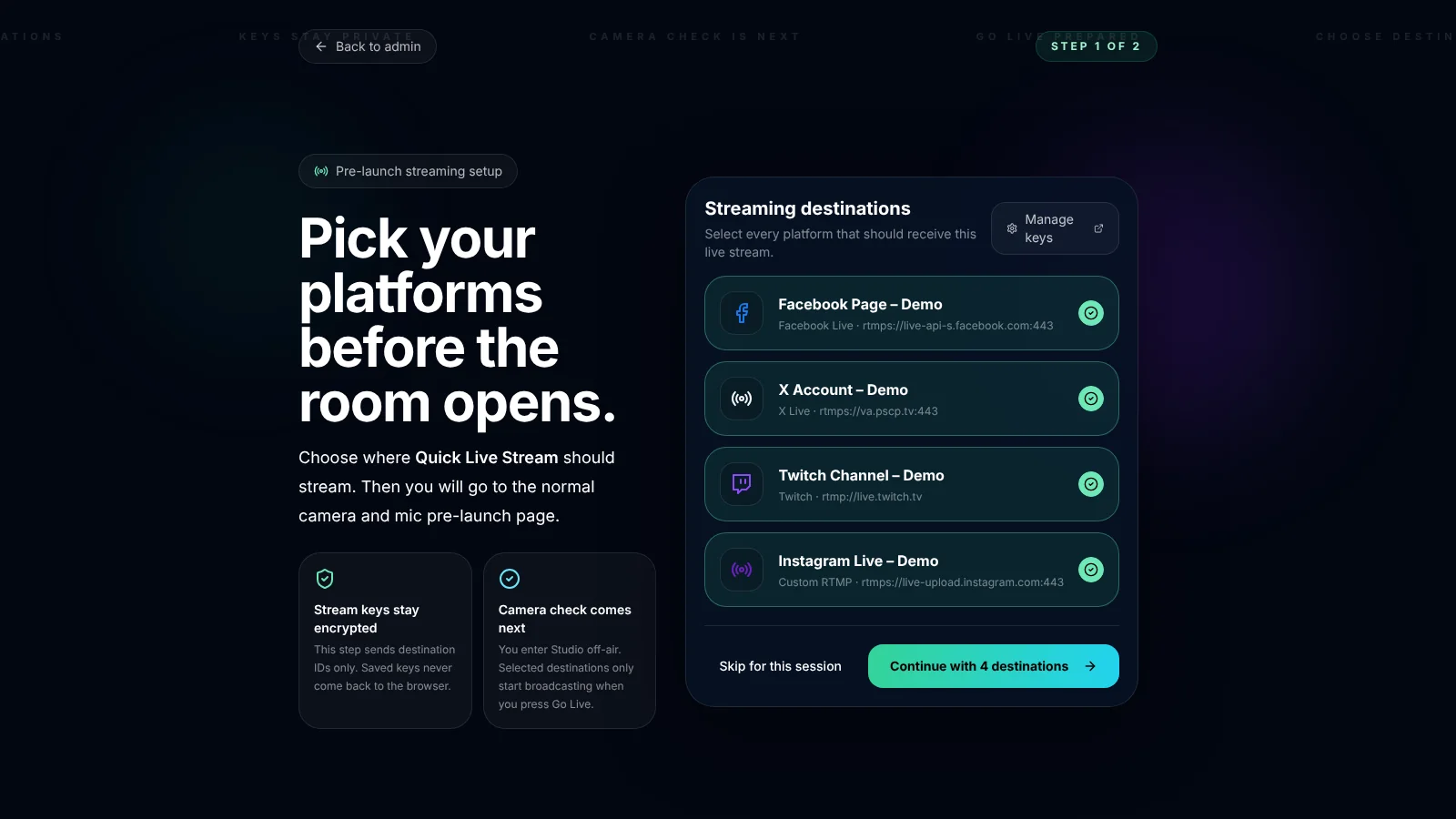
- Click Go Live at the top of the Studio to stream to your selected destinations.
Remember, a stable internet connection is crucial for smooth streaming. Always test your setup before going live to ensure the best experience for your viewers.
By following these steps, you'll be broadcasting your R-Link events on X in no time, reaching a wider audience with your high-quality content.

Written by the R-Link Studio team
We build R-Link Studio, the video platform for meetings, webinars and live streams that sell. Questions about this article? Talk to our team.